Aged Trial Balance Report
The purpose of the Aged Trial Balance Report is to show the balance for one or all customers so the company running the report knows what is owed to them. This article describes how to run the report and refine it by format, pay type, aging date, and selection type.
Aged Trial Balance Report
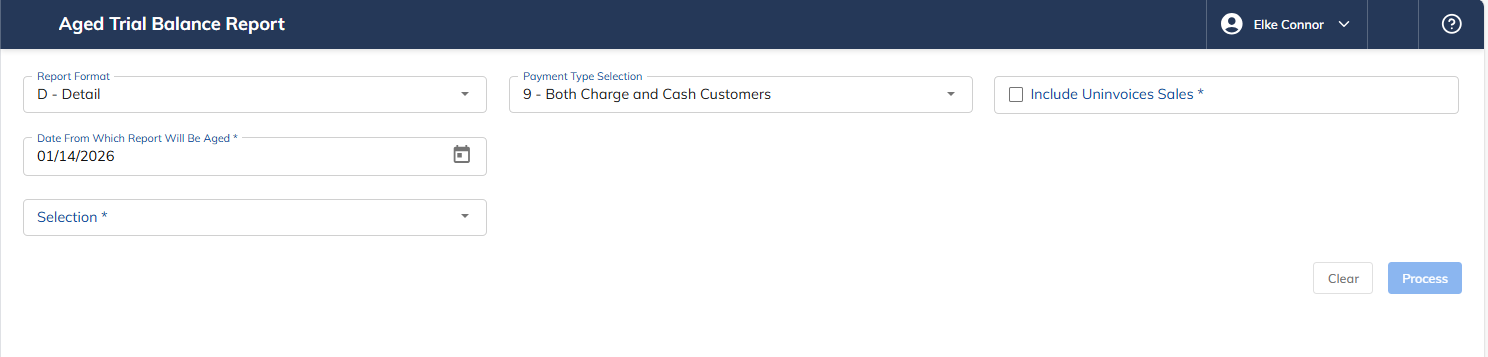
Select the Aged Trial Balance link under the Accounts Receivable menu option.
Select Report Format — choose one of the following:
D – Detail Report
S – Summary Report
Select a Pay Type — choose one of the following:
1 – Cash Only
3 – Charge Only
9 – Both Charge and Cash Customers
Include Uninvoiced Sales (Y/N).
Select the Date from which the report will be aged.
Selection to run report — choose one of the following:
1 – Distribution Centers
2 – Routes
3 – Customers
6 – Company
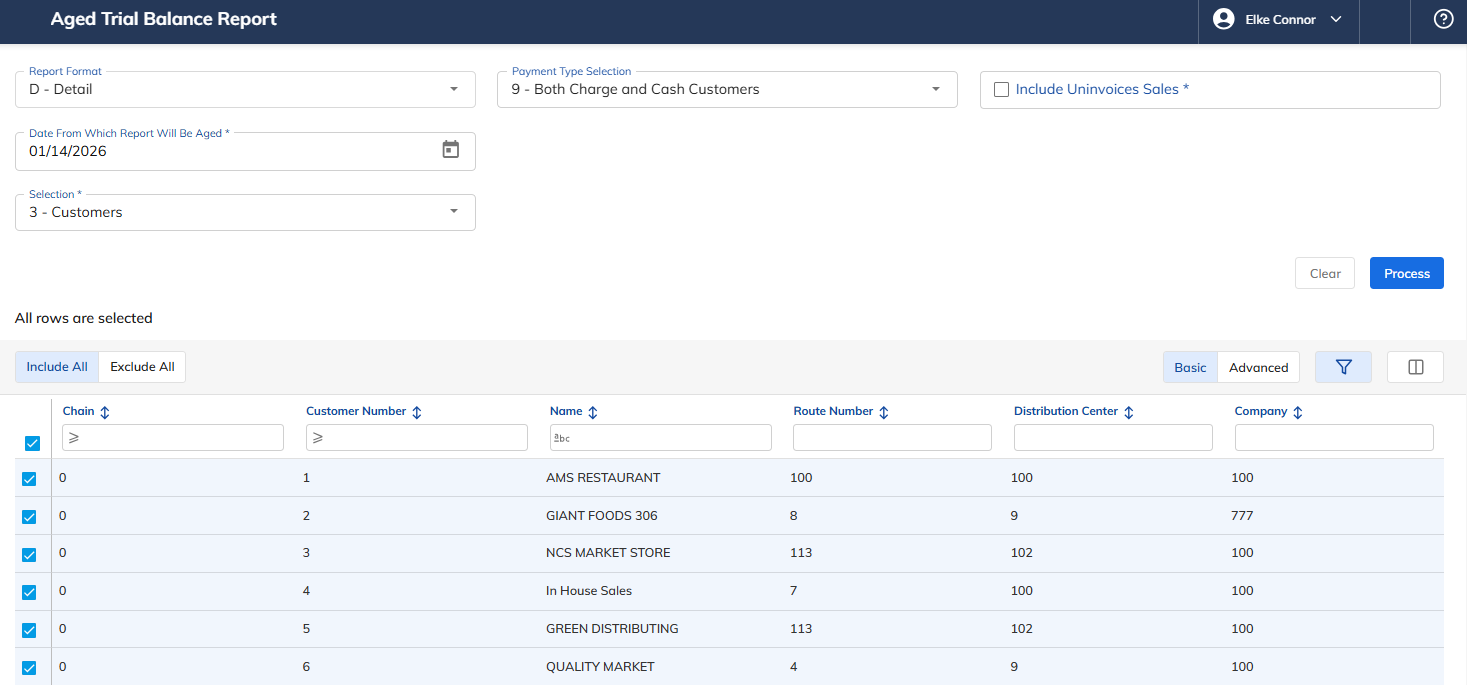
Once a selection is made, the following screen will appear based on the selection.
Include All — if you want to include all based on your selection (all Distribution Centers, Routes, Customers, and Companies), select it.
Exclude All — clears the user's selections and allows the user to begin the selection process again.
Or, the user can select random customers or a range of customers by clicking on the box on the left and paging through.
Once the selections have been completed, select Process.
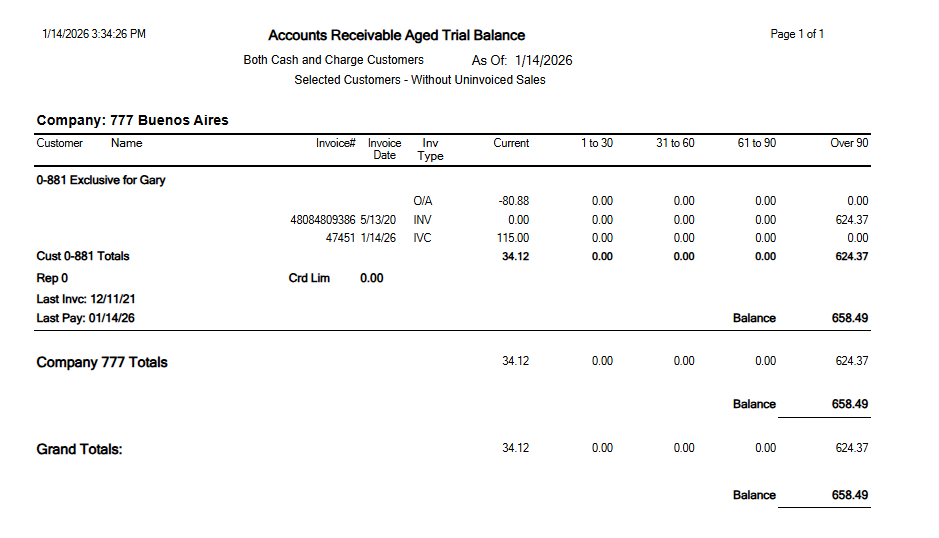
Sample Aged Trial Balance Report