Customer Price Maintenance
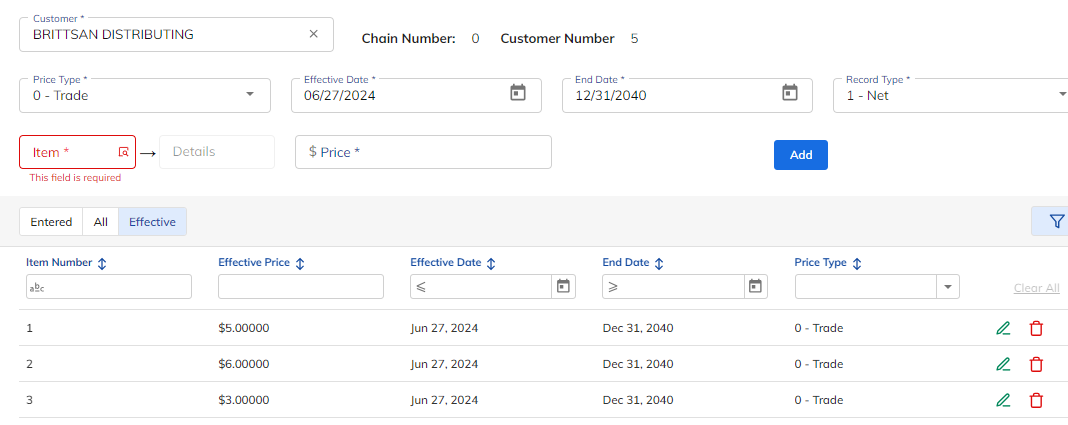
Customer Price Maintenance in xRMS lets you create and maintain pricing that is specific to an individual customer. Prices entered at this level can be customer base prices (Net), dollar-amount adjustments, or percentage adjustments. If the selected customer is a main chain customer (Chain > 0, Customer = 0), the prices apply to all members of the chain and take precedence over other prices — except those entered for a specific member of the chain at the customer level. This page walks through selecting a customer, entering prices, and using the All and Effective views.
Selecting the Customer
Select the Customer Price link under the Pricing Menu menu option.
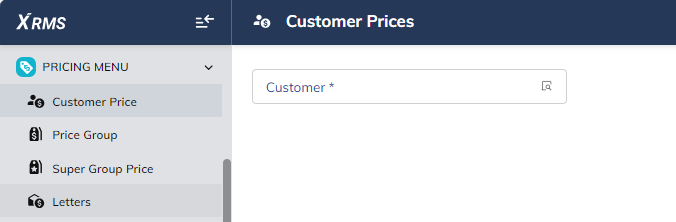
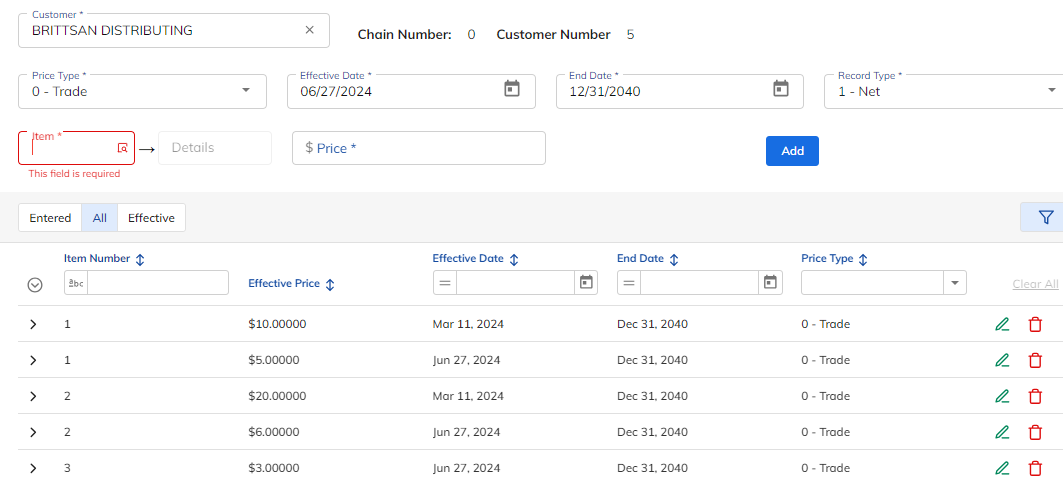
Select the customer from the list or enter the required customer number to maintain prices. Once the customer number is selected, the following screen appears:
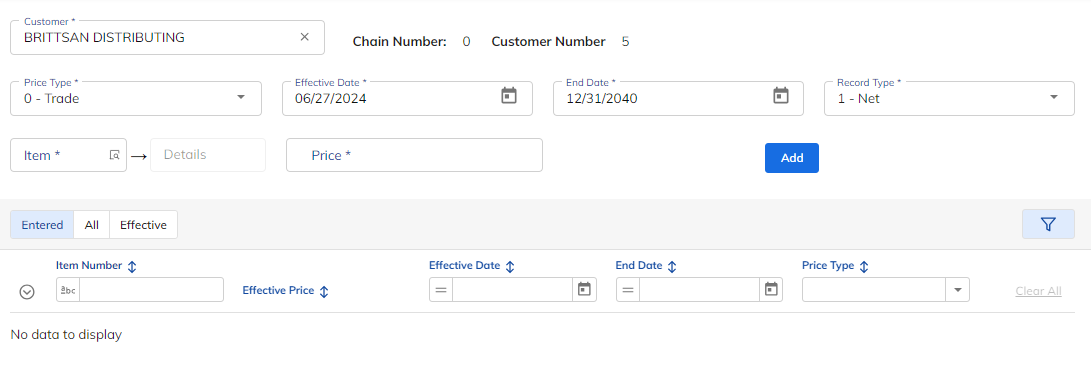
Entering a Price
Complete the fields at the top of the screen, then add a price for each item.
Customer – Identifies the customer name.
Chain Number – Identifies the customer chain number.
Customer Number – Identifies the customer number.
Price Type – Indicates the price type to be assigned to the price (see the table below).
Effective Date – Enter the effective date.
End Date – Enter the end date.
Record Type – Indicates the price type that has been assigned (see the table below).
Price Type indicates the price type to be assigned to the price:
Value | Price Type | Description |
|---|---|---|
0 | Trade | The customer’s contract or wholesale price. |
1 | Retail | The suggested retail price of the item. |
2 | Headquarter | The price charged to the main chain for store gross profit purposes. |
3 | Cost | The standard cost of the item. |
4 | Promotion | The simplified entry of an item promotion price. |
Record Type indicates the price type that has been assigned:
Value | Record Type | Description |
|---|---|---|
1 | Net Price | The price reflects the actual price of the item. |
2 | Offset Price | The price entered is an offset amount. This dollar value is either added to or subtracted (use field minus) from the next Net Price found. |
3 | Percentage Off | The price entered is a percentage amount. This value is either added to or subtracted (use field minus) from the next Net Price found. |
Then add each item price:
Select the Item Number for which you are maintaining a price.
Enter in the Price.
Hit Enter or Add after each line item to save the price record.
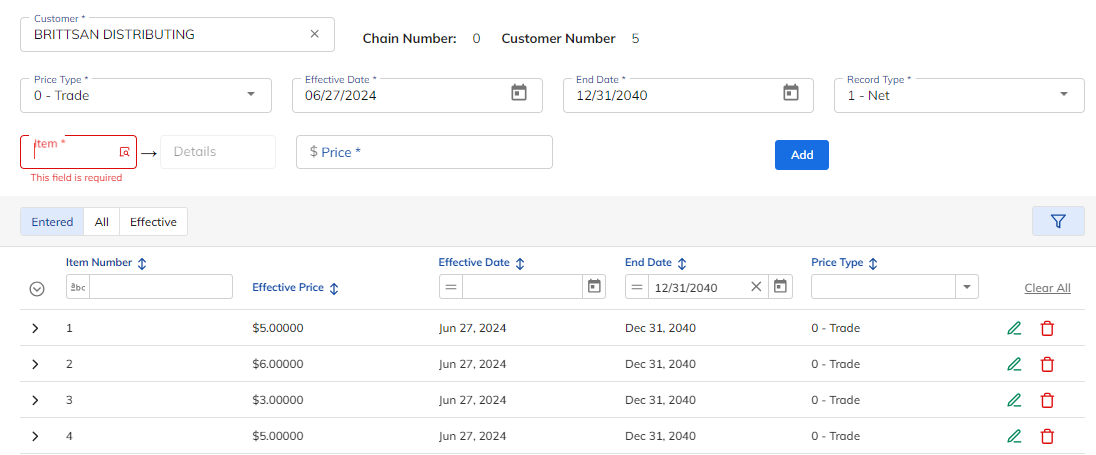
All Button
All displays all past, current, and future pricing.
Effective Button
Effective displays only the prices that are in effect for today’s date.