
Customer Price List
This article shows how a user can produce a Customer Price List for a particular customer, by price type and effective date. It covers selecting the customer, effective date, and price type, choosing which items to include, and printing the list.
Customer Price List
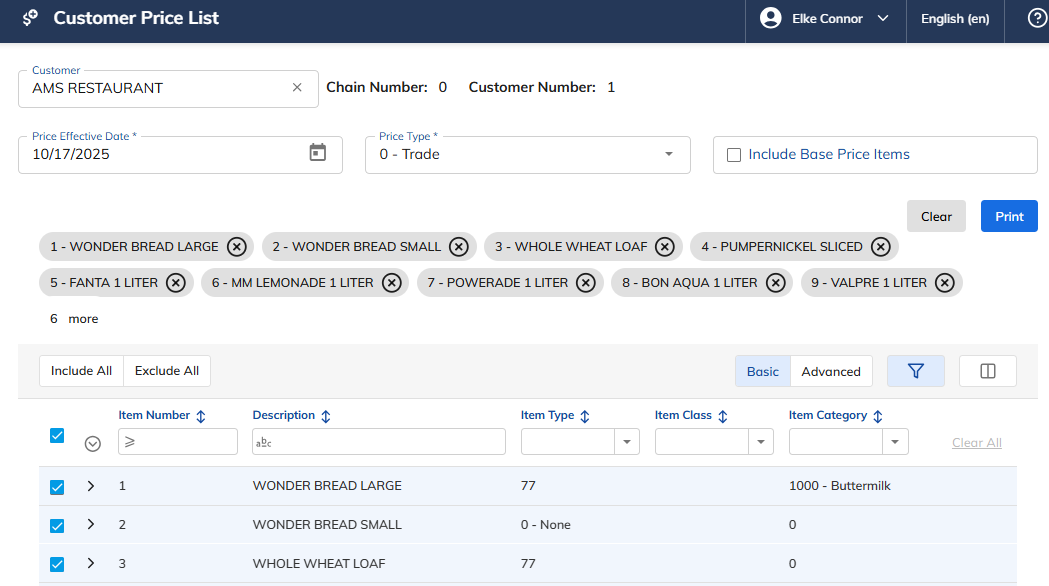
Select the Customer Price List link under the Pricing Menu menu option.
Enter the Customer and Chain number.
Enter the Price Effective Date (MMDDYYYY).
Select the Price Type — choose one of the following:
"0" – Trade
"1" – Retail
"2" – Headquarter
"3" – Cost
"4" – Promotion
Include Base Prices (yes or no).
Include All — allows the user to select all items, or the user can manually select certain items; use Exclude All to restart the item selection process.
Select Print to process the Customer Price List.
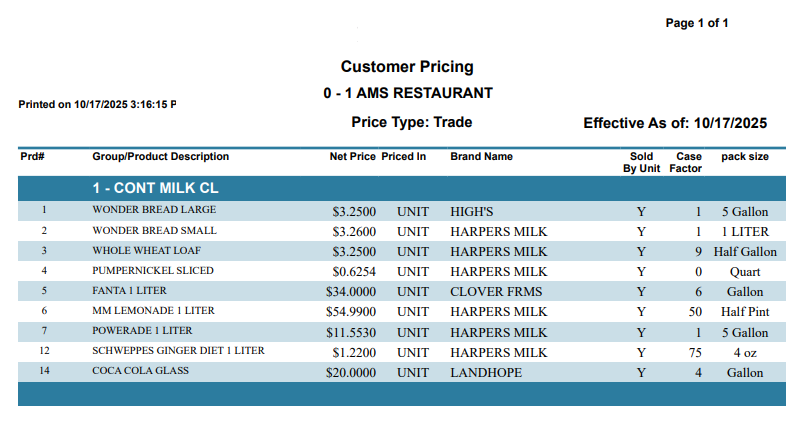
The price list contains the following information:
The page number of the price list, as well as the number of pages the list contains.
The date the Customer Price List was printed on.
The Chain and Customer Number, as well as the Customer Name.
The Price Type, as well as the effective date of the prices of the items selected.
The list of Item Numbers and Item Descriptions, as well as the Net Price, the Brand Name, whether the items are sold by unit, the Case Factor, and the Packaging Size.