
Check Load and Delivery Date Limits
xRMS controls how far in the past or the future the Load Date and Delivery Date can be entered on an order. Two system options define those boundaries, and xRMS validates both dates when you click Proceed. If either date falls outside the allowed range, the system prevents the order from being processed and displays an error message. This article explains how to locate and review these settings, and shows the errors that appear when an order carries a Load Date or Delivery Date outside the permitted past or future range.
| Option | What it defines |
|---|---|
| SY / ORDPRIDTE | The maximum number of days a date can be entered in the past. |
| SY / ORDFUTDTE | The maximum number of days a date can be entered in the future. |
Before You Begin
Prerequisites
You have access to CONTROL → Option Type in xRMS.
You know today's date in the system, since both limits are measured relative to it.
Past Dates
Step 1 — Find the Prior-Date Limit (SY / ORDPRIDTE)
Go to CONTROL → Option Type.
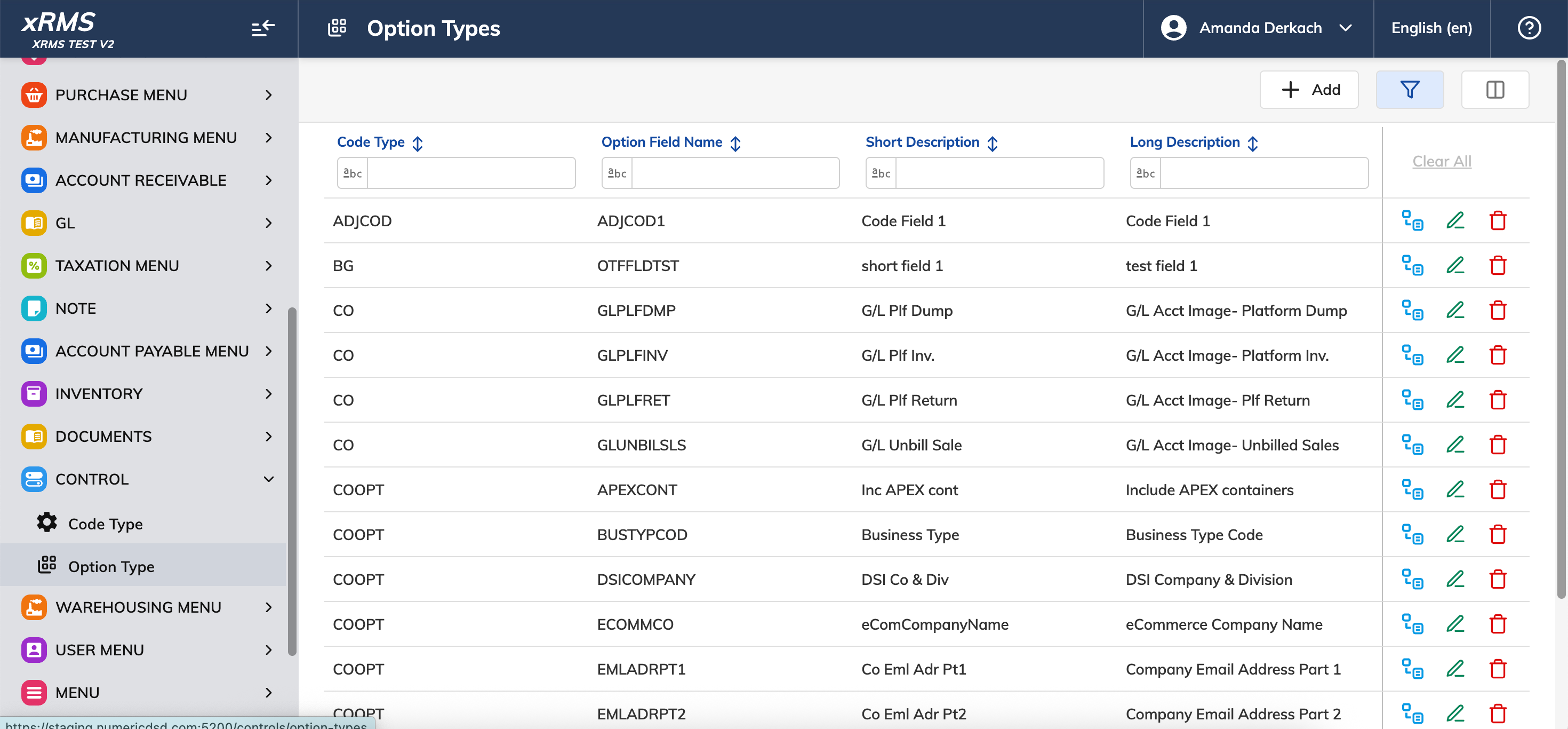
Figure 1: Option Types — navigate to CONTROL → Option Type.
Filter Code Type to "SY" and Option Field Name to "ordpri."
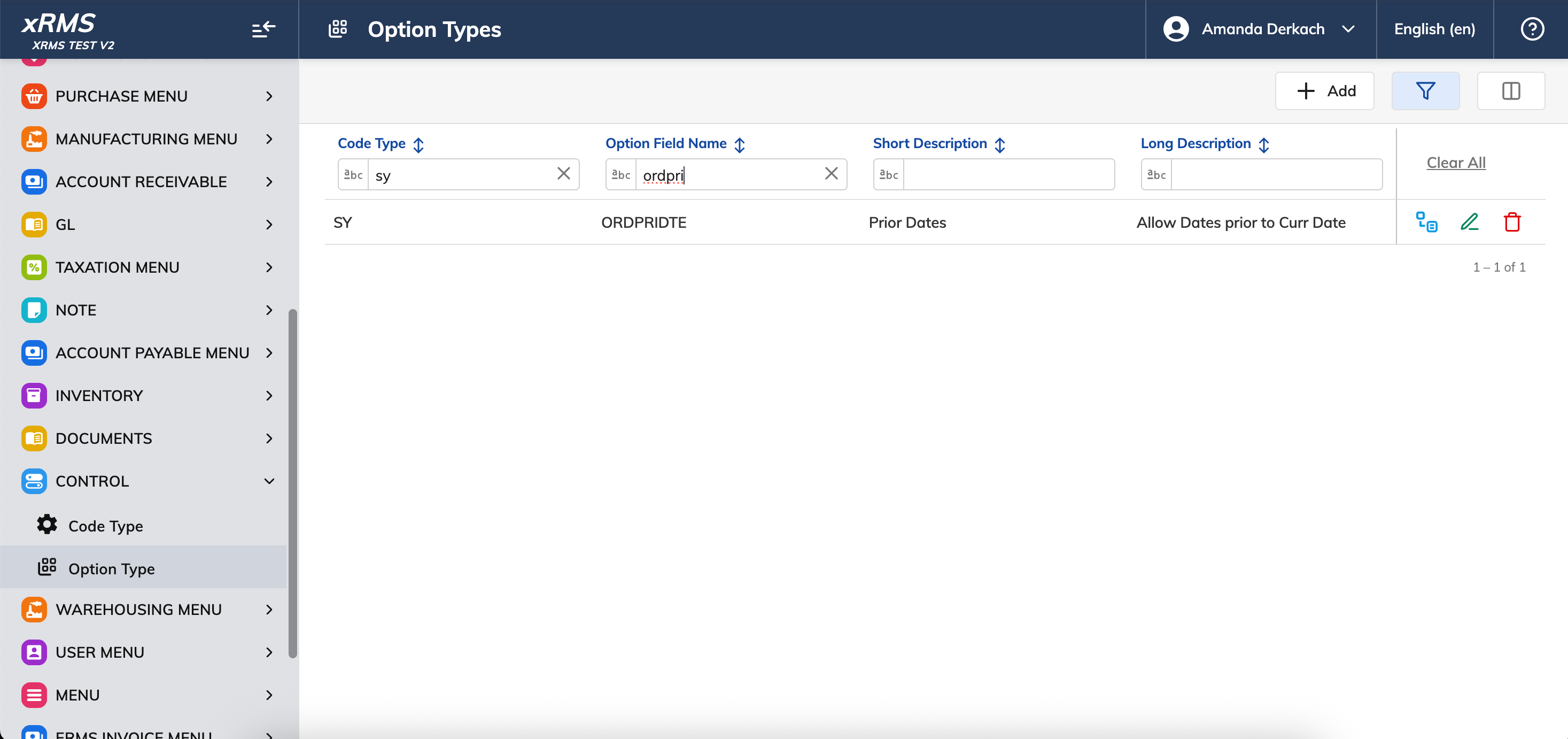
Figure 2: Filtered to SY / ORDPRIDTE — the prior-date limit setting.
Open the record. The Integer value on the DEL and LOD rows is the maximum number of days in the past a Delivery Date (DEL) or Load Date (LOD) may be set. In this environment, both are set to 7 days.
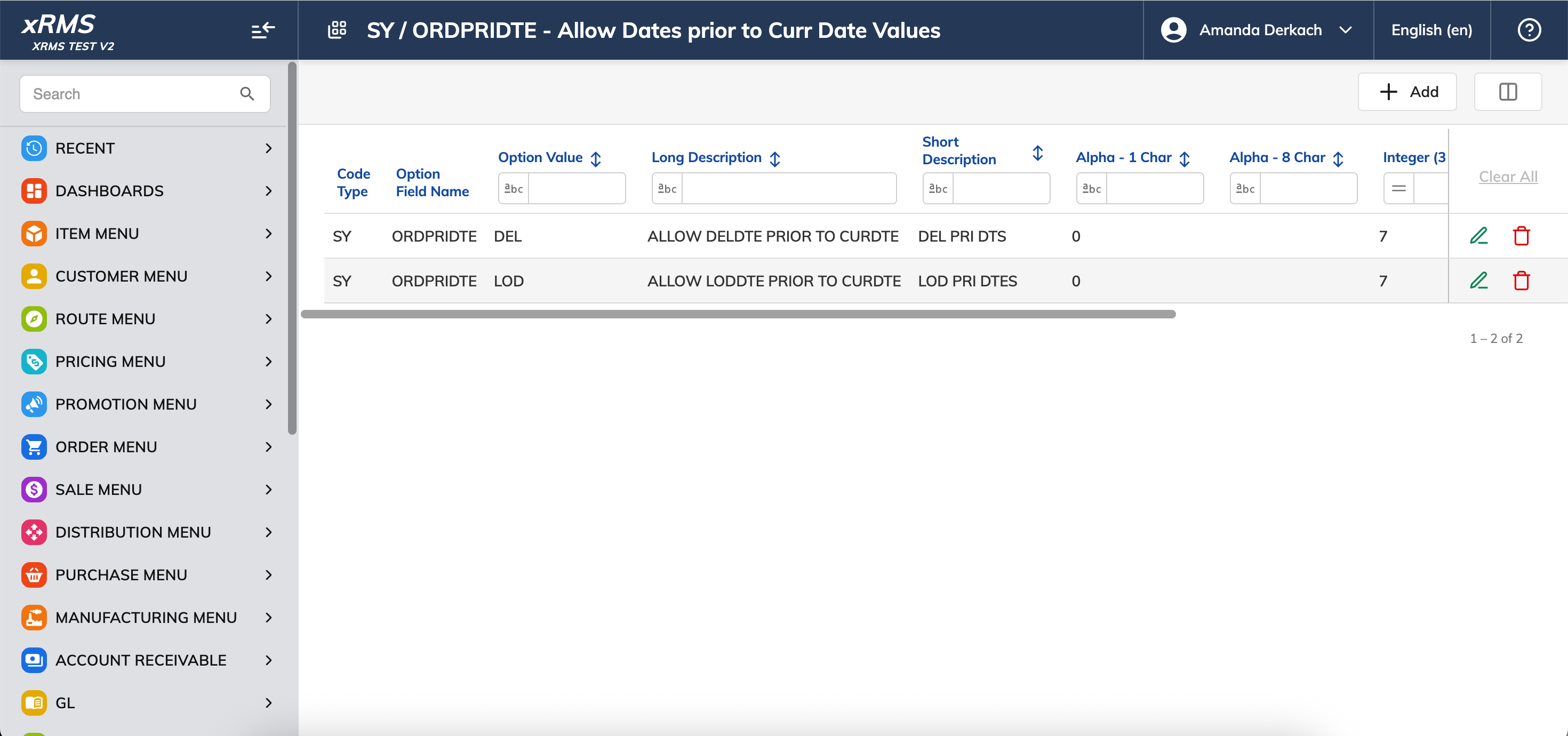
Figure 3: SY / ORDPRIDTE values — DEL and LOD are each set to 7 days.
Step 2 — Test a Load Date Within the Limit
Go to Order Menu → Order Entry and select a customer and Order Type.
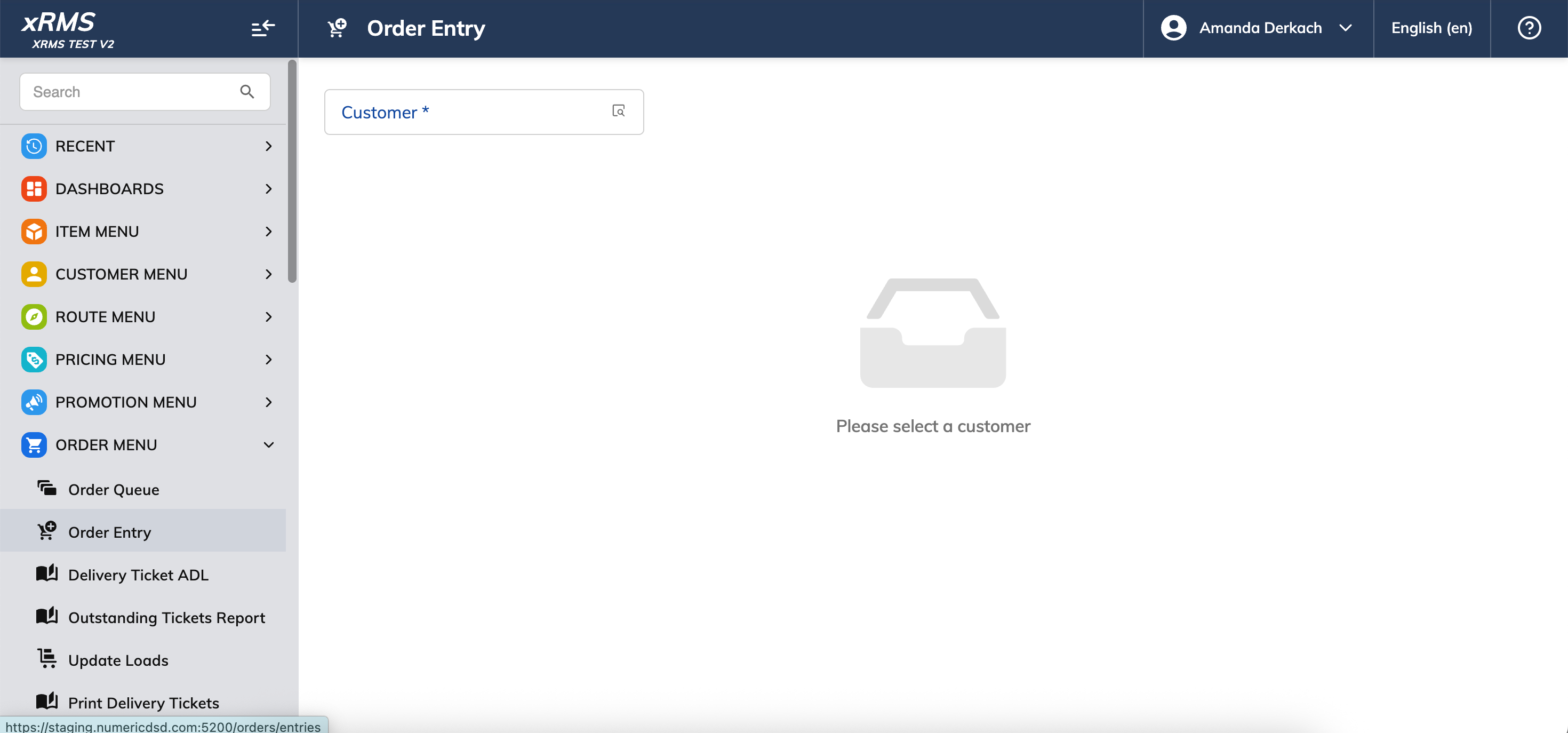
Figure 4: Order Entry — select the customer.
Expand Unscheduled Delivery and set the Load Date and Delivery Date at or near today. The dates are accepted normally.
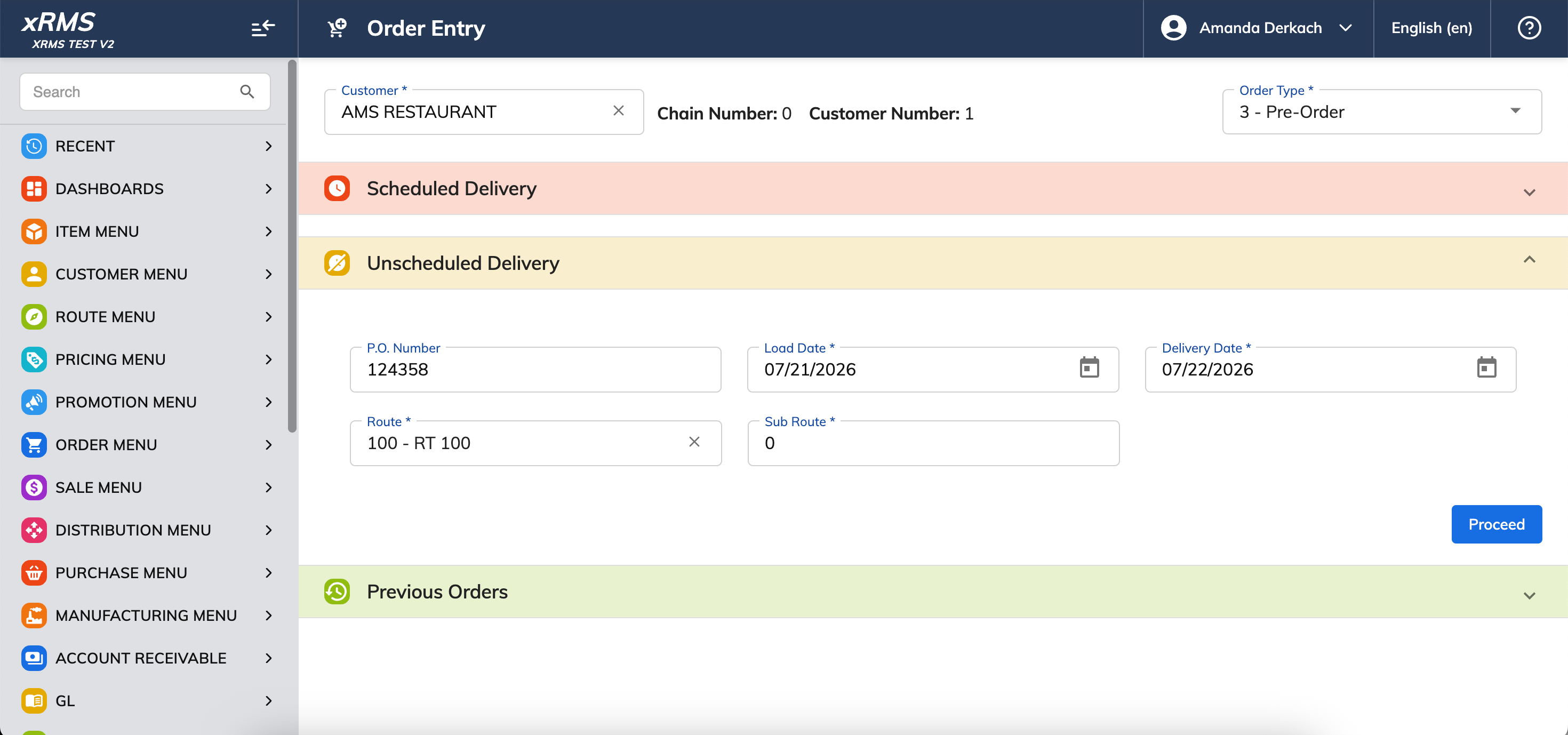
Figure 5: Load Date and Delivery Date set at today — accepted normally.
Step 3 — What Happens Beyond the Limit
Here, the Load Date and Delivery Date have been set to more than 7 days before today.
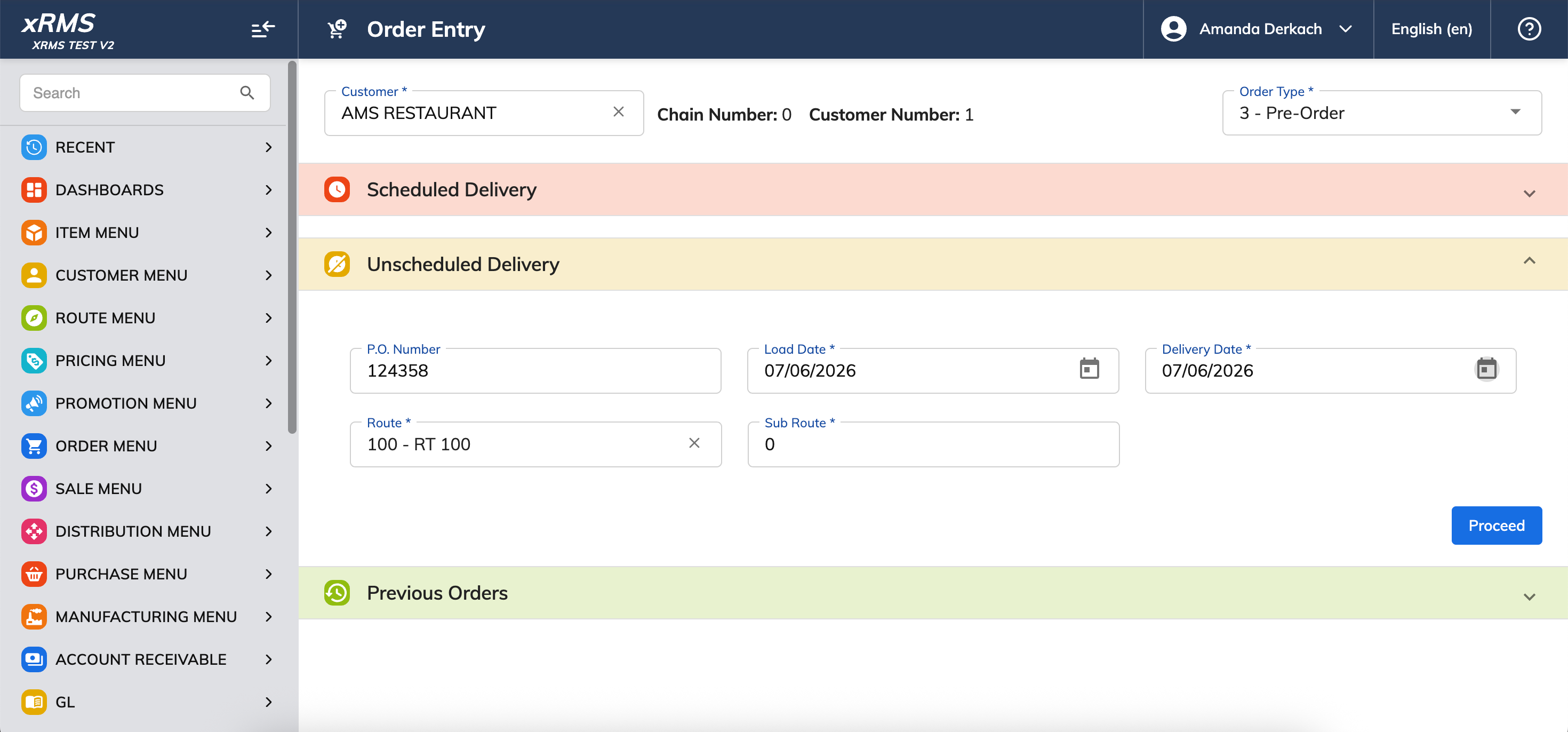
Figure 6: Load Date and Delivery Date set more than 7 days in the past.
If you scroll down and click Proceed with a date this far in the past, xRMS will block the order with an error, since it falls outside the 7-day limit.
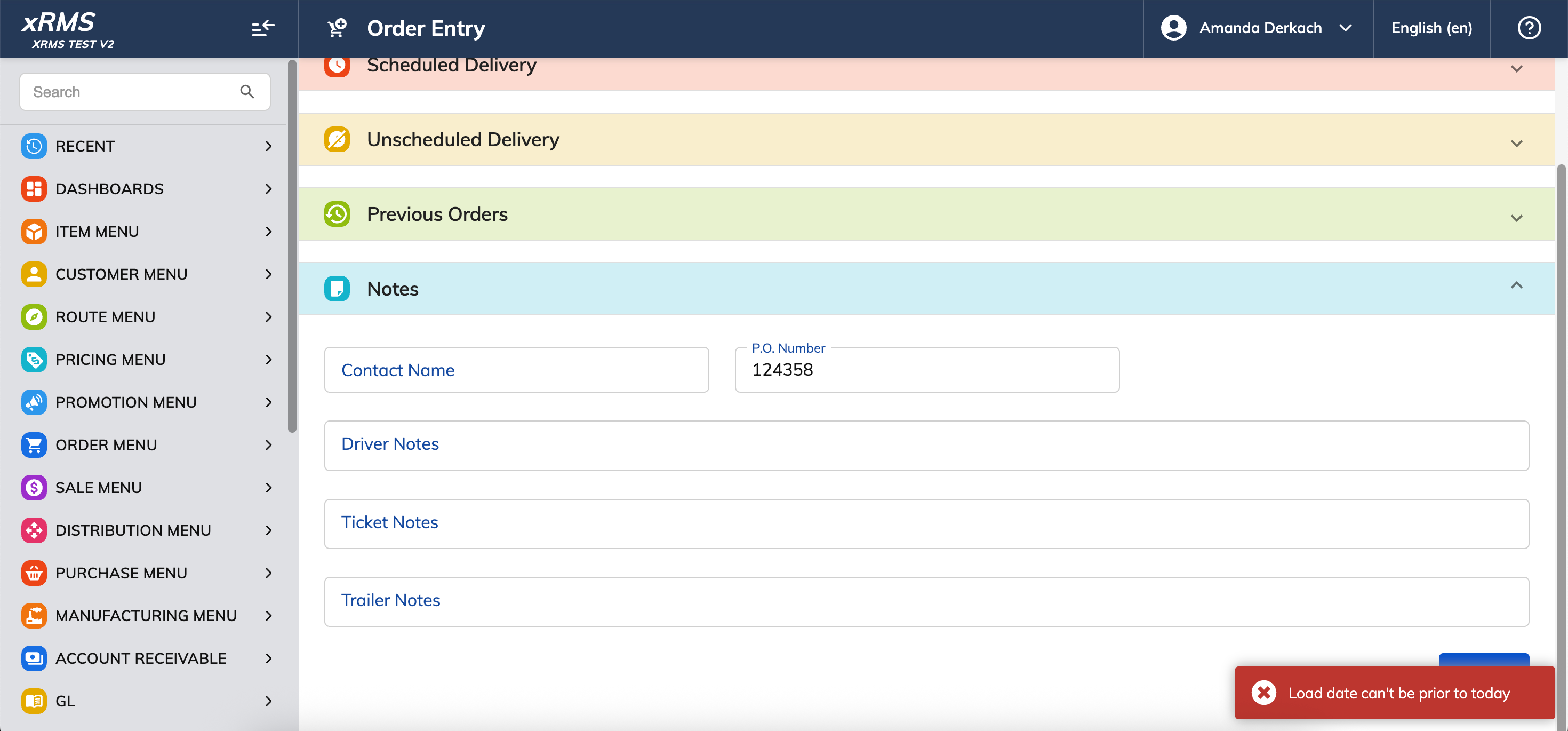
Figure 7: Clicking Proceed with a date too far in the past returns an error.
What Not to Do
Do not set a Load Date or Delivery Date more than 7 days before today — xRMS will block the order.
Future Dates
Step 4 — Find the Future-Date Limit (SY / ORDFUTDTE)
In CONTROL → Option Type, filter Code Type to "SY" and Option Field Name to "ordfut."
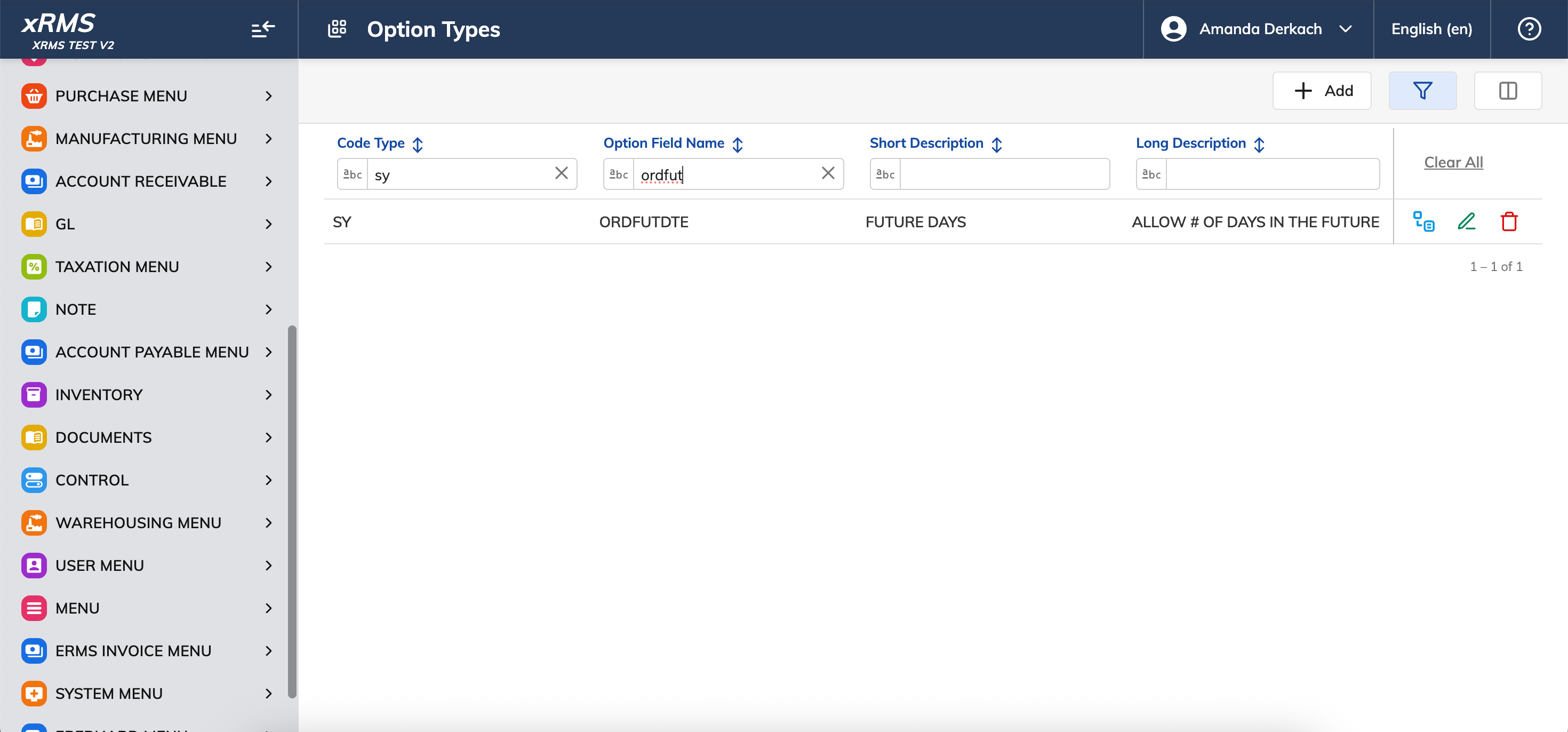
Figure 8: Filtered to SY / ORDFUTDTE — the future-date limit setting.
Open the record. The Integer value on the DEL and LOD rows is the maximum number of days in the future a Delivery Date (DEL) or Load Date (LOD) may be set. In this environment, both are set to 45 days.
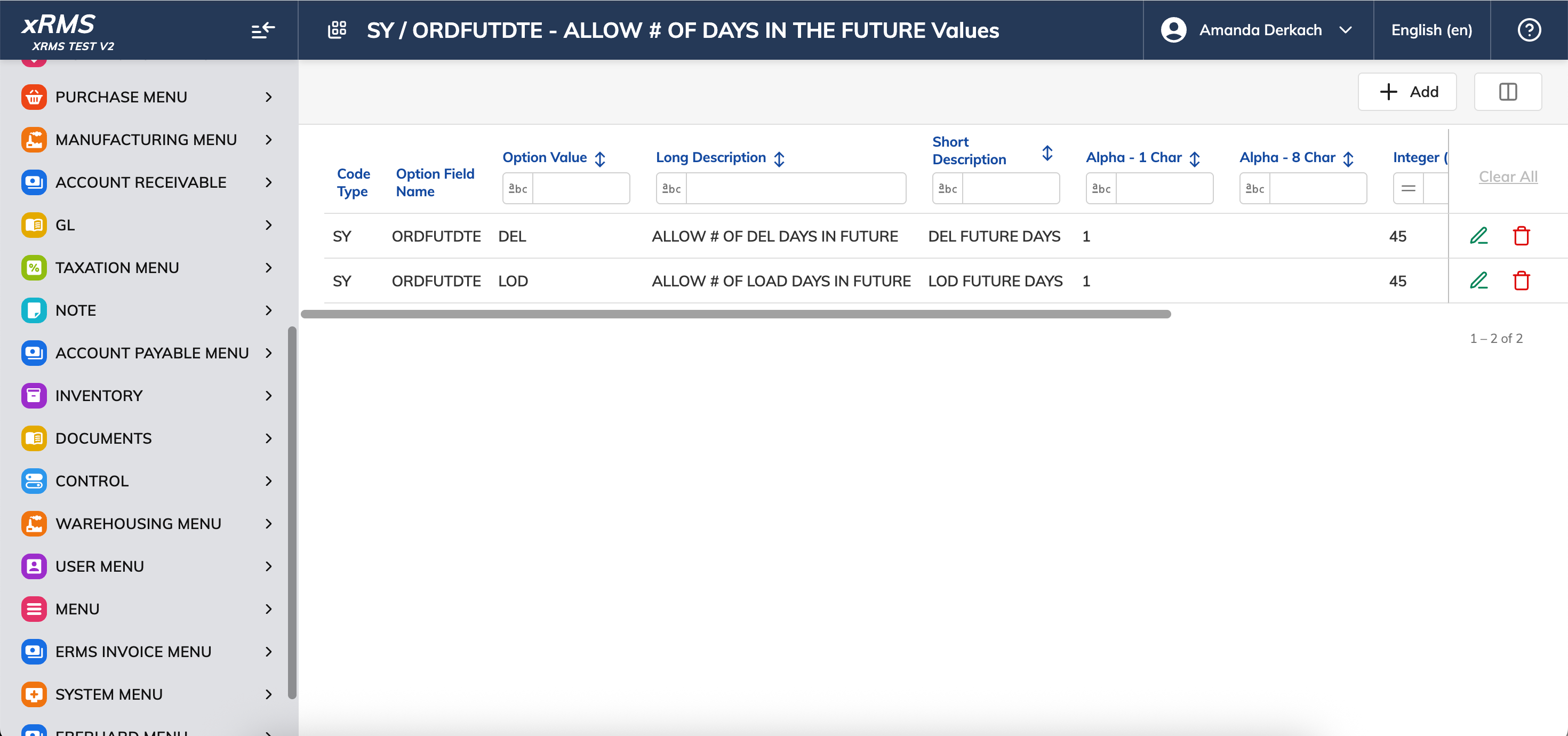
Figure 9: SY / ORDFUTDTE values — DEL and LOD are each set to 45 days.
Step 5 — What Happens Beyond the Limit
Here, the Load Date and Delivery Date have been set to more than 45 days ahead of today.
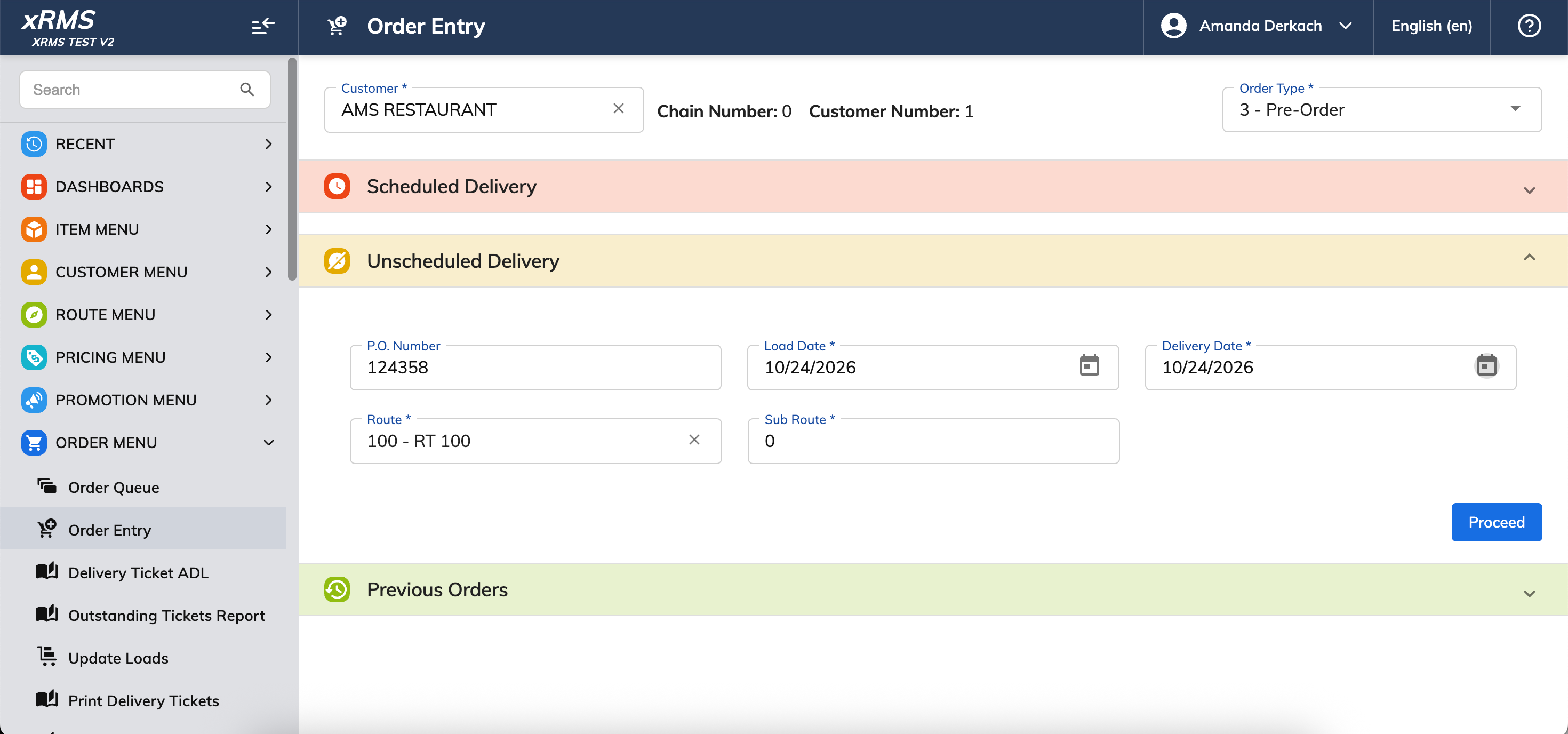
Figure 10: Load Date and Delivery Date set more than 45 days in the future.
If you scroll down and click Proceed with a date this far out, xRMS will block the order with an error — this one states the 45-day limit explicitly.
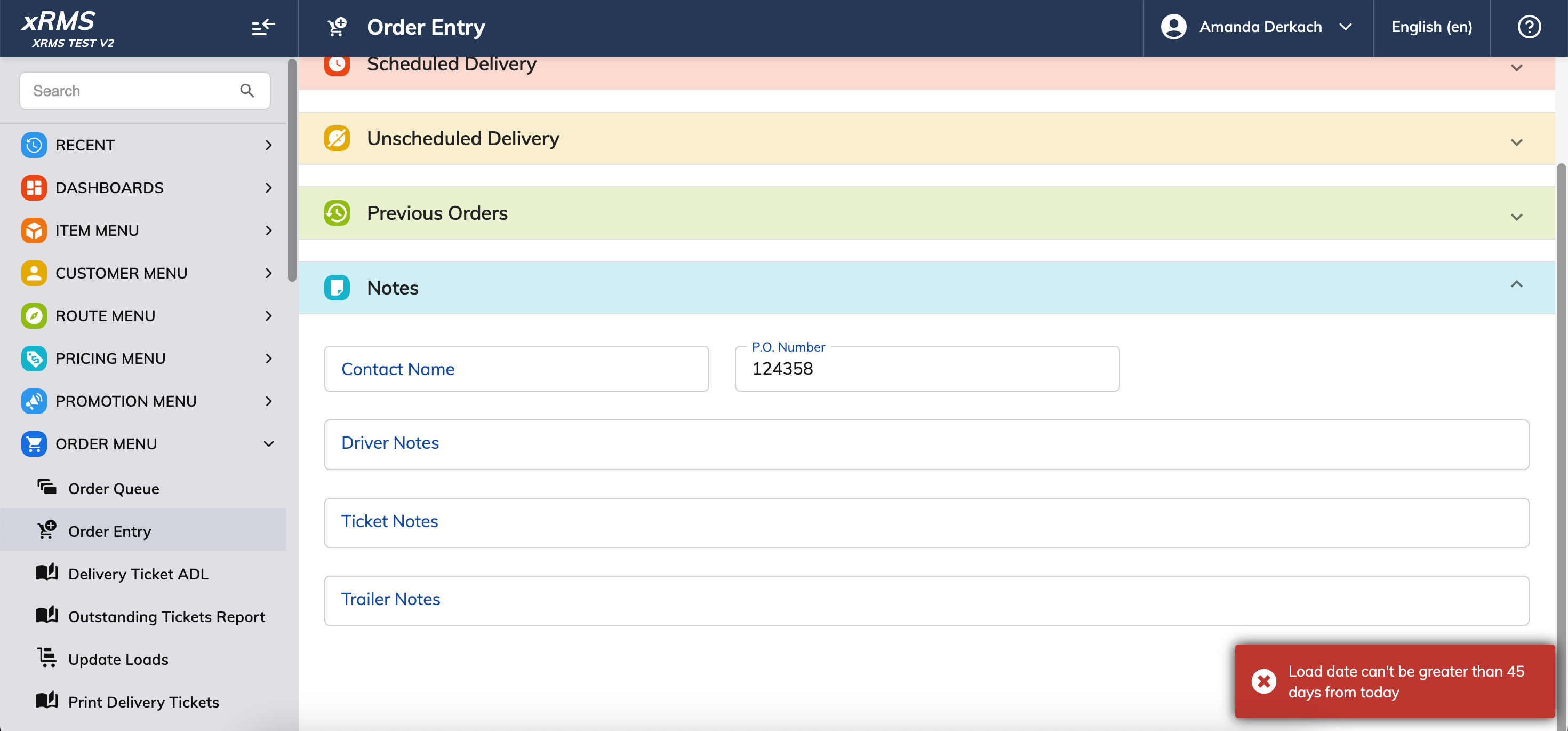
Figure 11: Clicking Proceed with a date too far in the future returns an error.
What Not to Do
Do not set a Load Date or Delivery Date more than 45 days ahead of today — xRMS will block the order.
Source document: "How to Check Load and Delivery Date Limits in xRMS," version 1.0 — Author: Amanda Derkach — Effective 07/21/2026. The 7-day and 45-day values shown are those of the test environment; each company sets its own.