Print Delivery Tickets
This article shows how to print Delivery Tickets in xRMS. The print job can be run by load or delivery date and refined by distribution center, route, customer, or order, with options for unit of measure, handheld, reprint, and copies.
Print Delivery Tickets
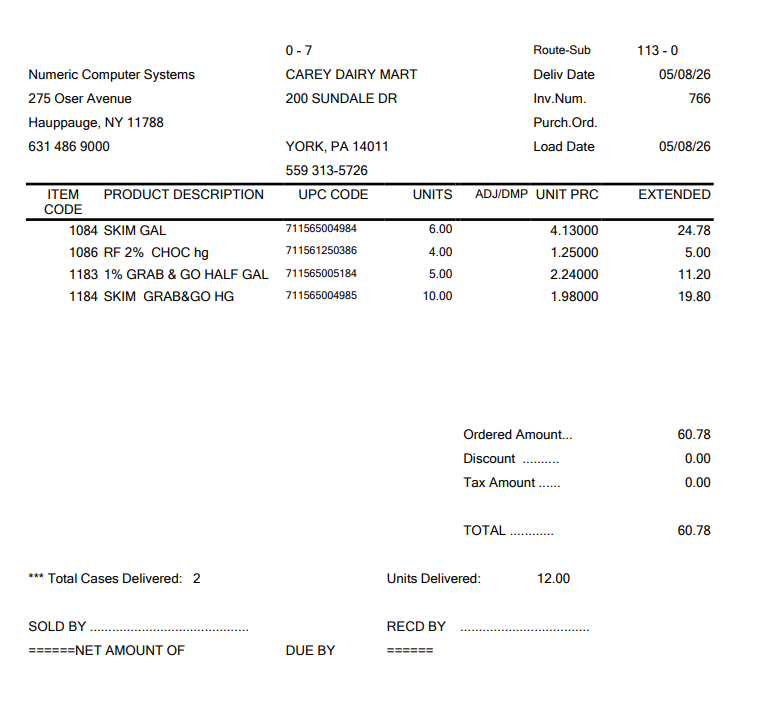
Select the Print Delivery Tickets link under the Order Menu menu option.
Select the Date Type — choose one of the following:
"1" - Load Date
"2" - Delivery Date
Select how to update — choose one of the following:
"1" – Distribution Centers
"2" – Route
"3" – Customer
"4" – Order
Select Unit of Measure — choose one of the following:
"0" – Unit
"2" – Case
Print Handheld (Y/N).
Reprint (Y/N).
Print Copies — enter the number of delivery ticket copies to print.
Make a selection based on the criteria above: Include All, Select Individual, or Exclude All.
Once these selection criteria have been entered, the number of delivery tickets to print or reprint is displayed.
Select Process to print the Delivery Tickets.
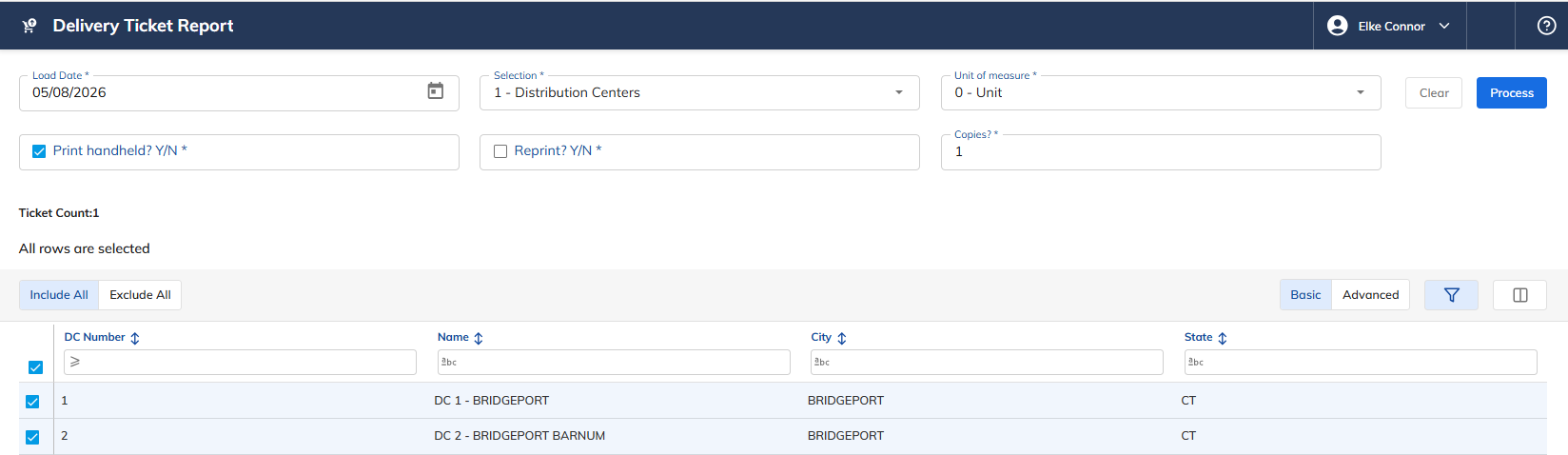
Once Process has been selected, the following Delivery Ticket will print.
Delivery Ticket Example