Convert Standing Orders
This article shows how to use Convert Standing Orders in xRMS. A Standard Order holds the same item numbers and quantities for a customer's delivery day, and Convert Standing Orders turns those Standard Orders into normal orders for a chosen delivery date.
Overview
xRMS provides the facility to create Standard Orders for customers based on the delivery date of a day of the week (NMTWHFS) with the same item numbers and quantities.
A Standard Order is created in the same way as you would create a Normal Order; however, the Standard Order has an Order Type of "Standard Order".
The Standard Order is then converted to a normal order based on the delivery date using one of the following selections:
Chain/Customer(s)
Route(s)
Distribution Center(s)
Company(s)
The customer must have a Standard Order created for the Delivery Day the conversion is being run for.
Main Process
Select the xRMS Main Menu.
Select the Order Entry Menu.
Select Convert Standing Orders. The following screen displays.
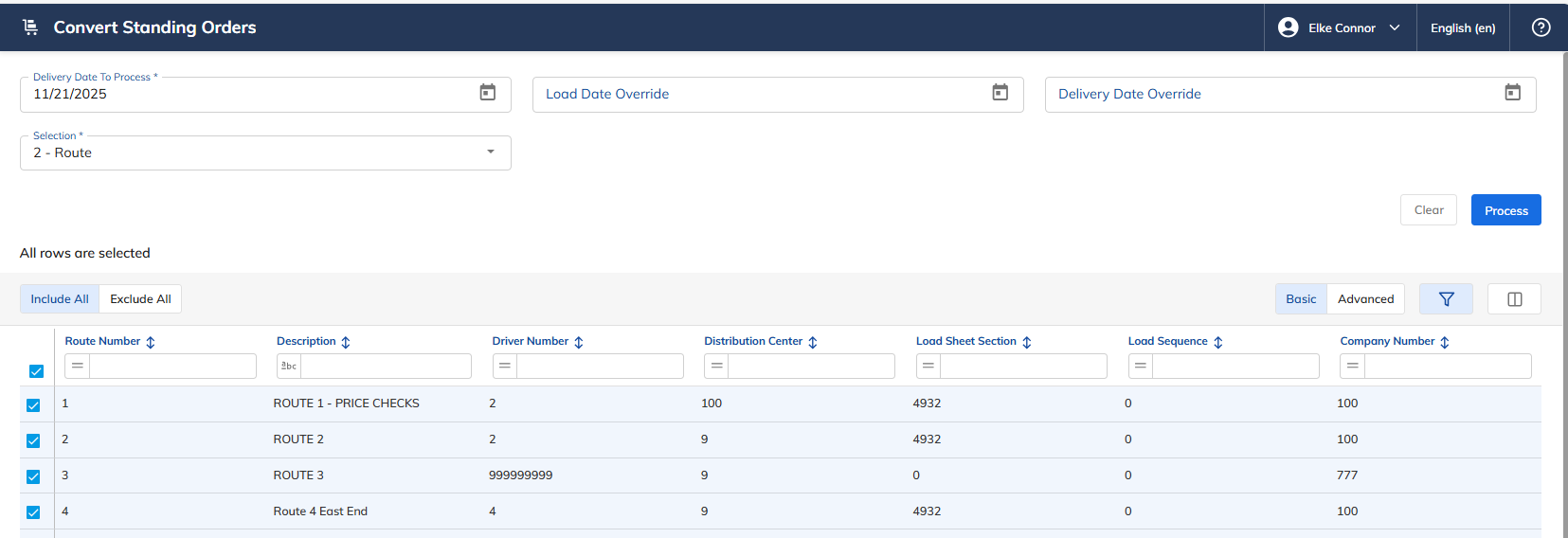
Select a Delivery Date to Convert Standing Orders.
Select a Load Date to Override (used during holidays).
Select a Delivery Date to Override (used during holidays).
Make a selection based on the criteria above: Include All, Select Individual, or Exclude All.
Select Process to Convert Standing Orders.
Regarding Override Load and Delivery Date, using Memorial Day as an example: the user wants to convert the orders that would normally be delivered on Monday (05/25/09) with an actual delivery day of Tuesday (05/26/09). In this example, the user enters 05/25/09 for the delivery date to process, 05/26/09 in the Enter Override Delivery Date field, and 05/26/09 in the Enter Override Load Date field.
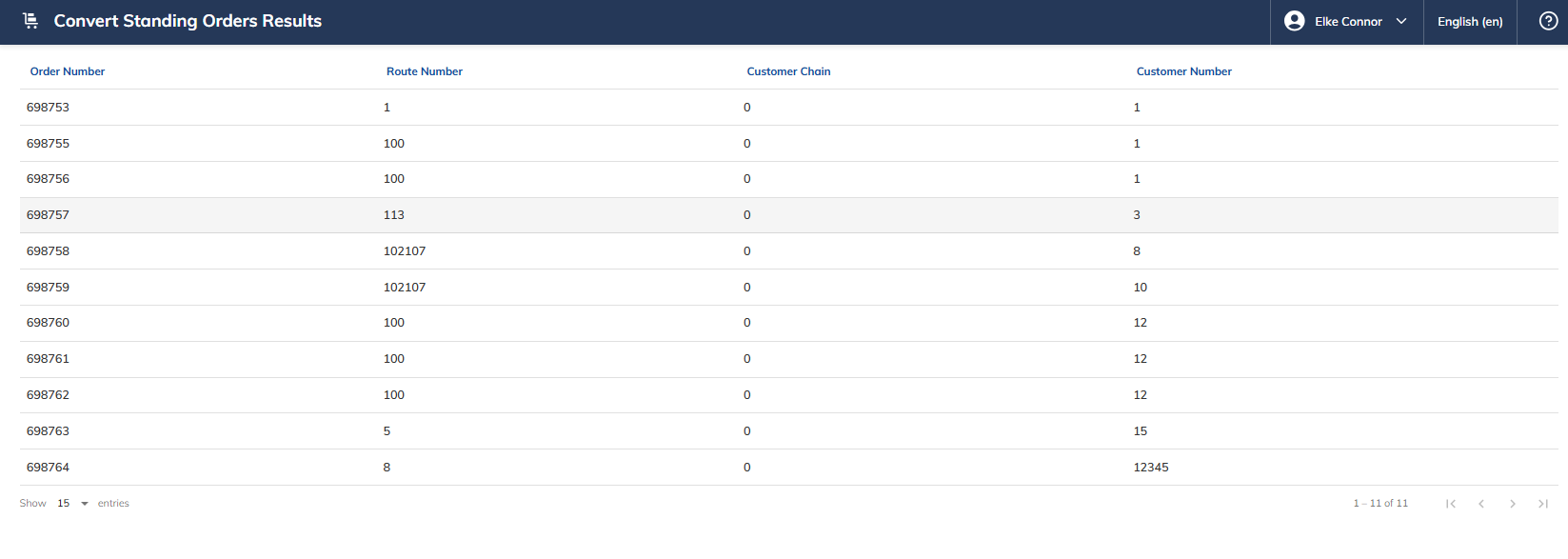
Sample Report – Orders Created Report
This report identifies the orders that were converted successfully.