Enter a Pre-Order
This article describes the process of creating pre-orders in xRMS, covering the essential steps for scheduled delivery day pre-order entry and management. The Pre-order option allows the creation of sales orders of items to customers.
Pre-order Entry in xRMS (Main Screen)
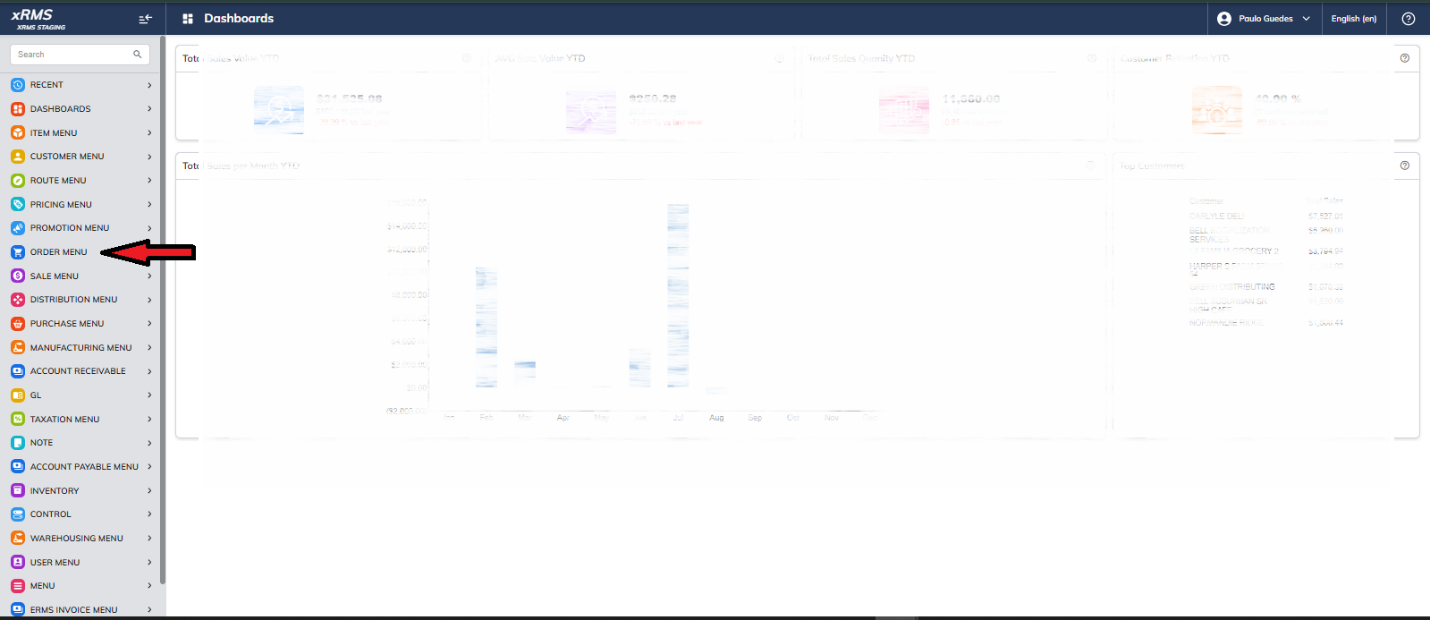
Pre-order Entry in xRMS
The Pre-order option allows the creation of sales orders of items to customers.
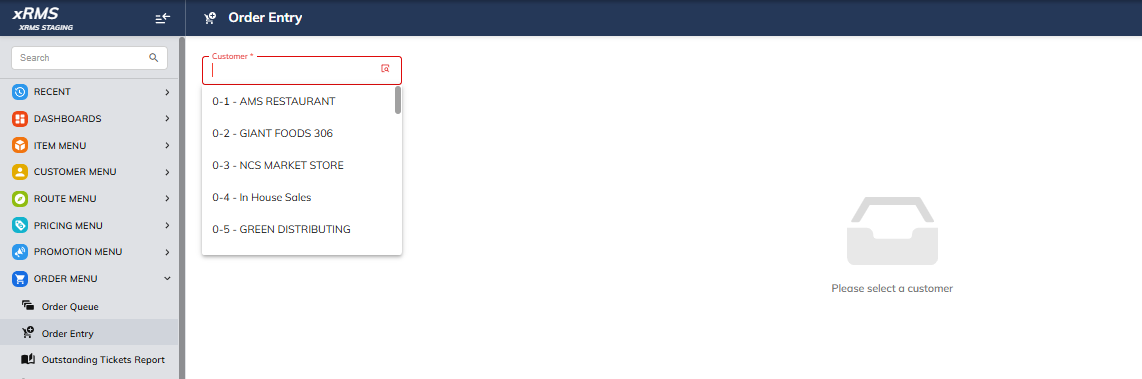
Select the Order Entry link. The following screen will appear:
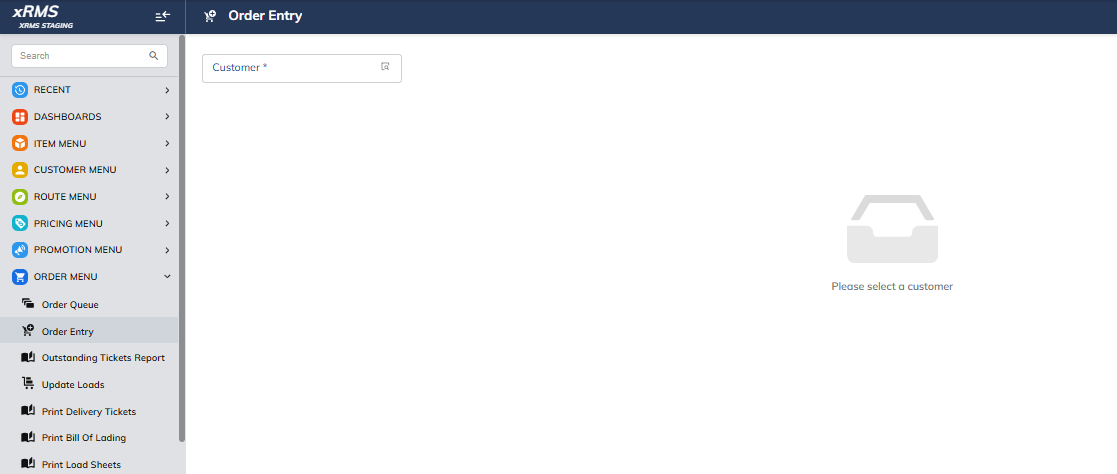
Choose a customer from the customers drop-down list.
Selecting the Customer
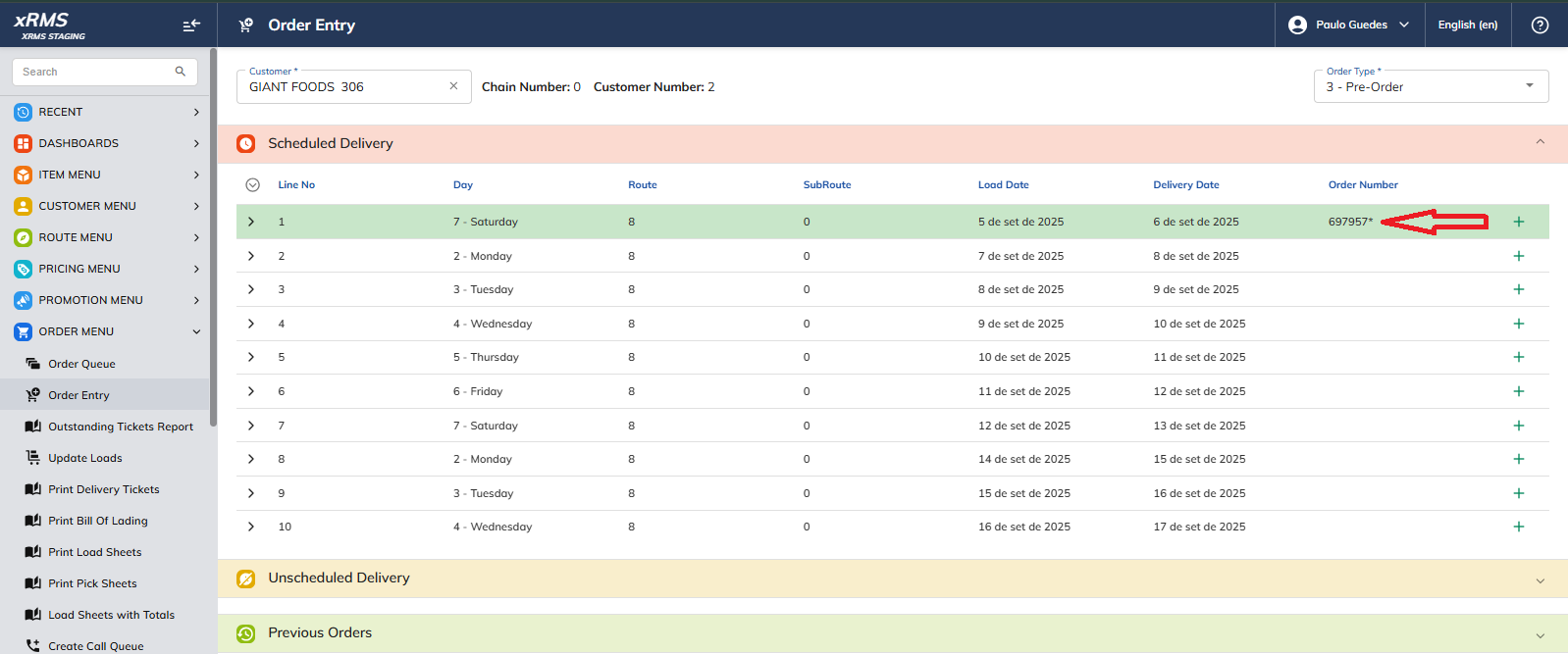
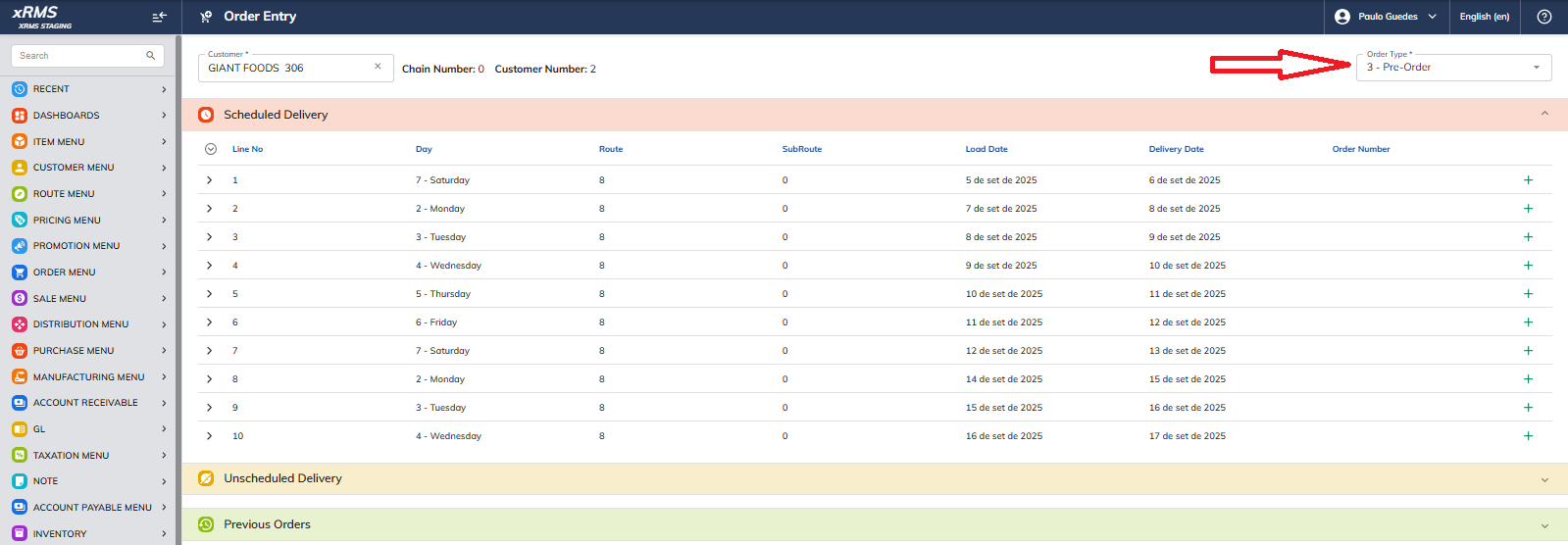
Once the customer is chosen, select the option 3 - Pre-Order in the Order Type field. The respective Scheduled Delivery for that customer will appear.
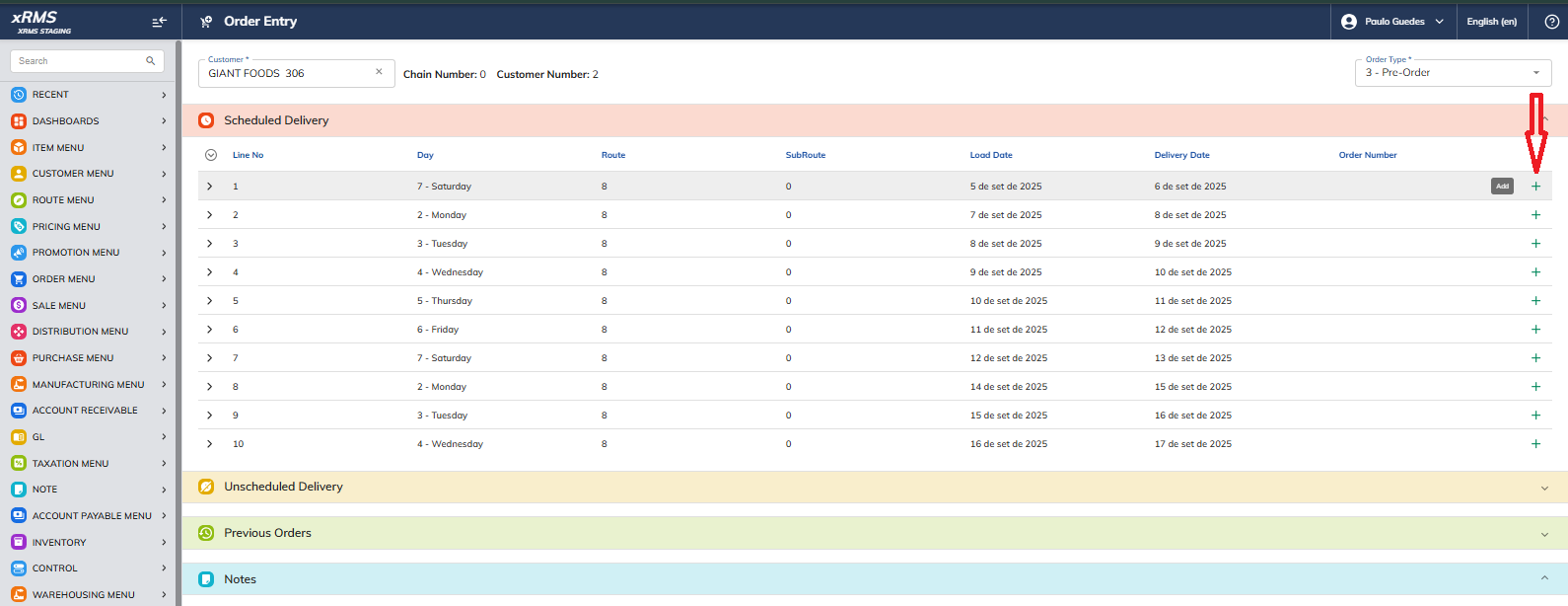
Select the (+) button to create a new order for a scheduled day. Once the (+) button is pressed, the "Notes" section will appear with the corresponding "Pre-Order" number.
Creating the Order
Populate any fields of interest.
Press the Proceed button to create the respective order.
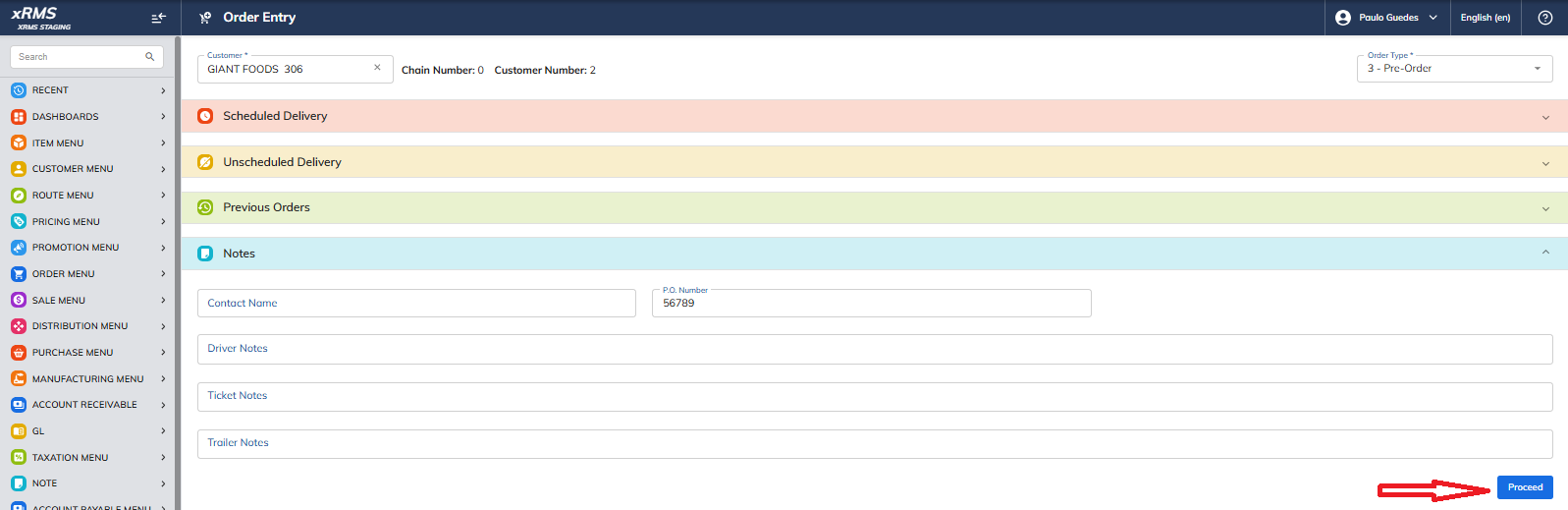
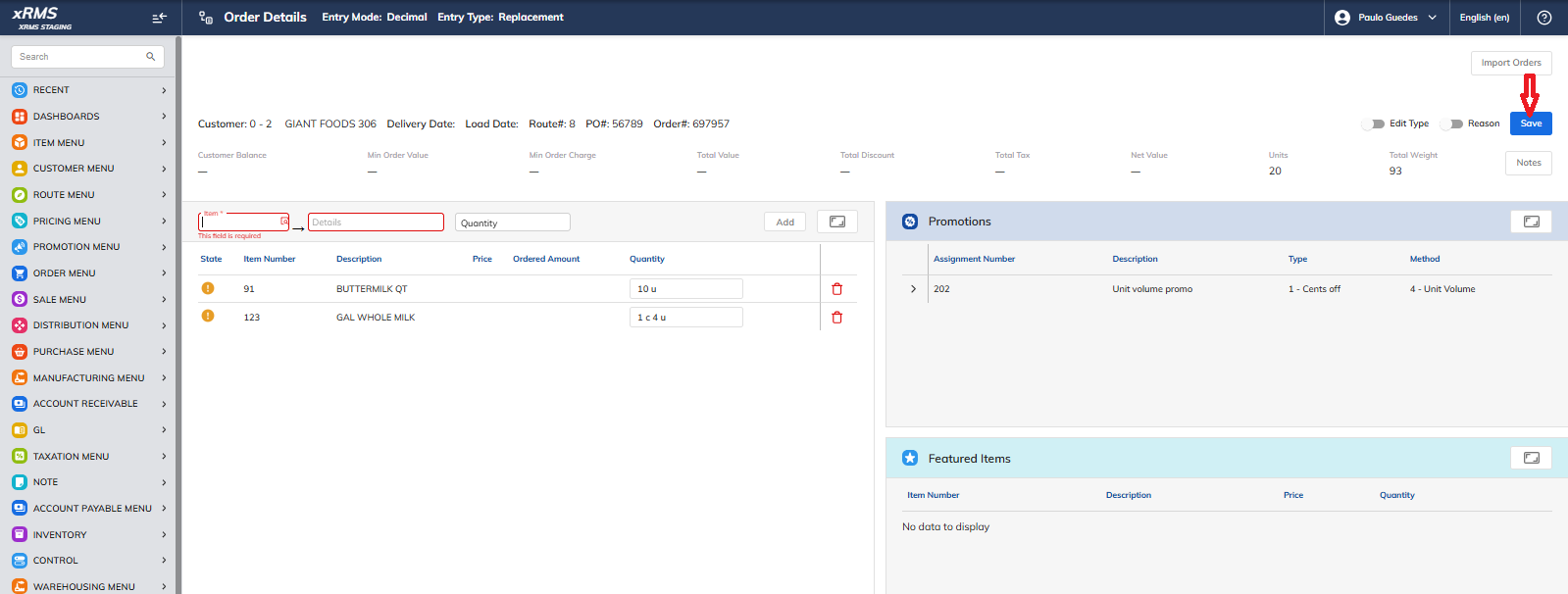
After that, the following screen will appear.
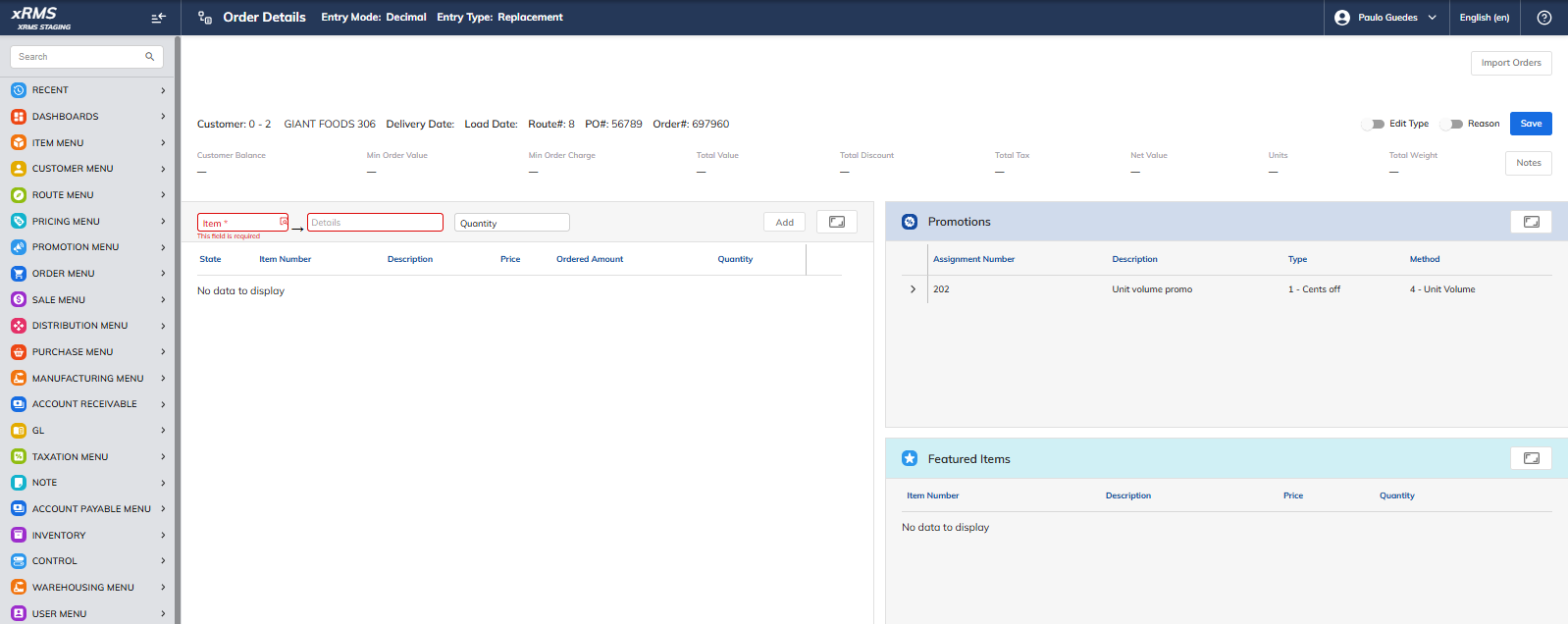
Selecting the Order Items
Pick the Item field to choose an Item from the Items table.
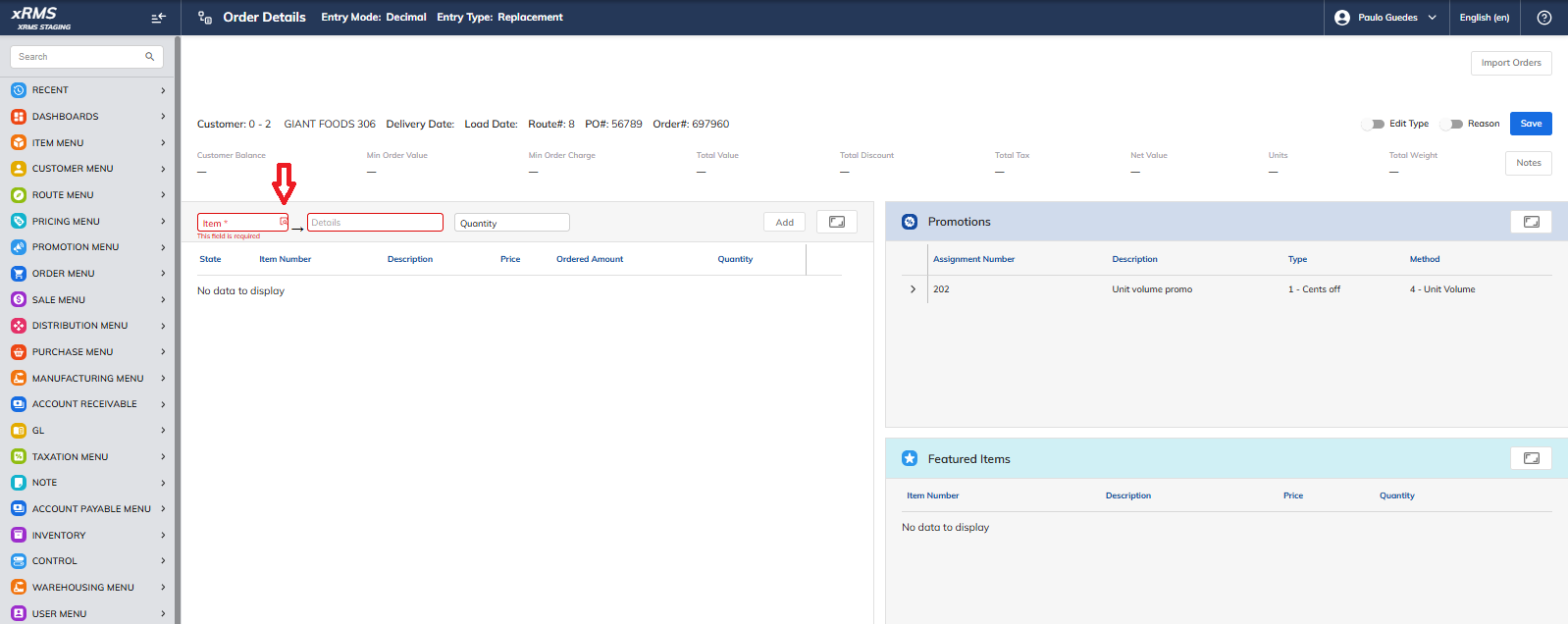
| Field | Description |
|---|---|
| Item | Allows selecting an Item from the Items table. |
| Details | This field is automatically filled once the respective Item is chosen. |
| Quantity | Allows you to enter the number of items required. |
Press the Add button after filling in the fields mentioned above so that the item appears on the order list. The same procedure should be followed to add more items to the order.
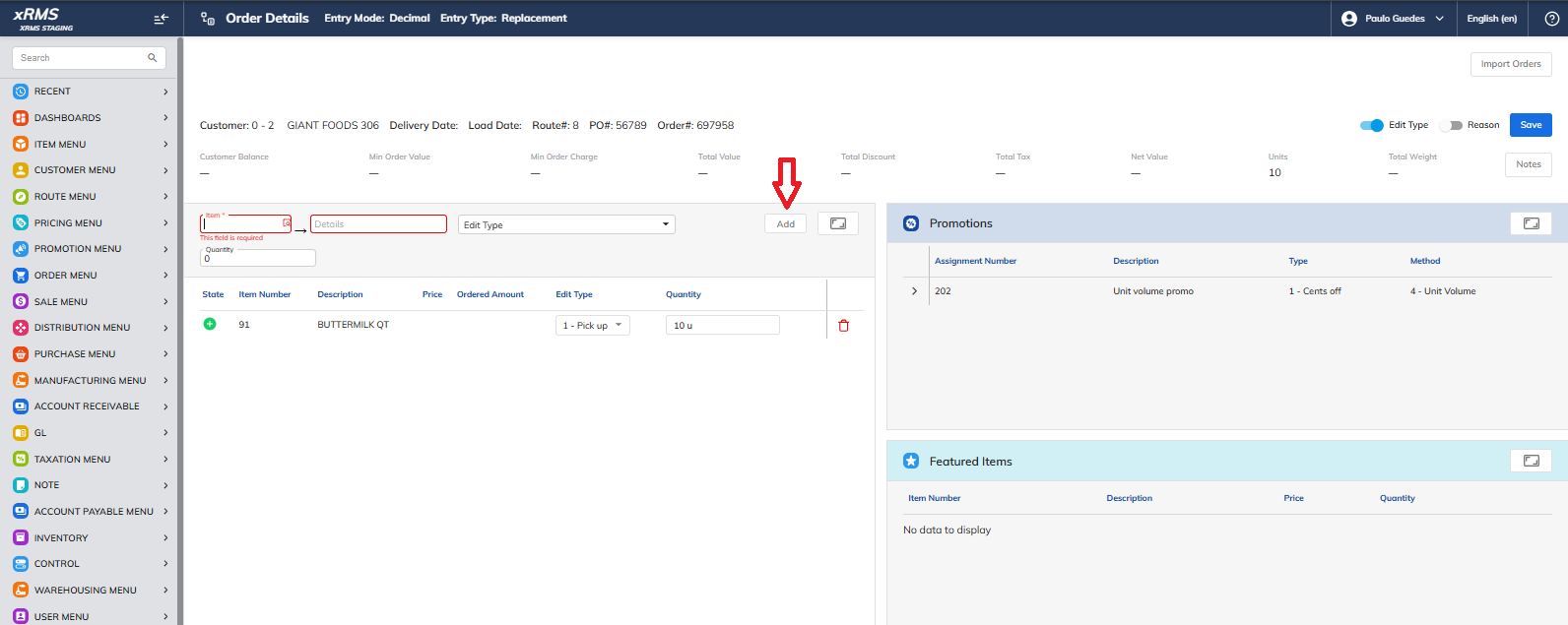
Saving the Order
Click Save to save the items selected.
Once the item is saved, it will be available in the respective Scheduled Delivery.