Route Recap
Route Recap gives an overview of all transactions made through sales entry and platform entry for a specific route on a specific load date. It supports route reconciliation by helping finalize the settlement of the route and load date.
Route Entry
Select the Route Recap link under the Sale Menu menu option.
Enter the Route Number.
Enter the Load Date.
Enter the Subroute Date.
Select the view – units or cases.
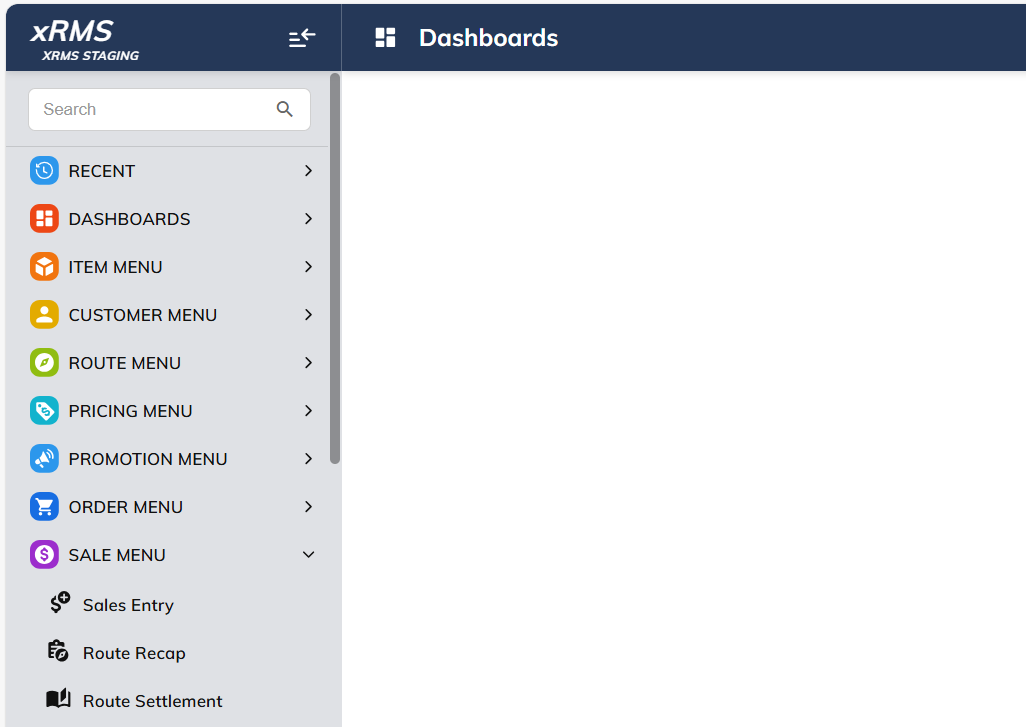
The following screen will appear:
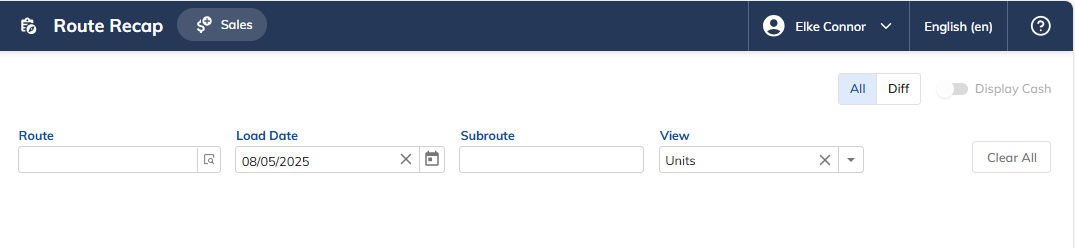
As the selections begin to be made, the Route Recap information begins to appear:
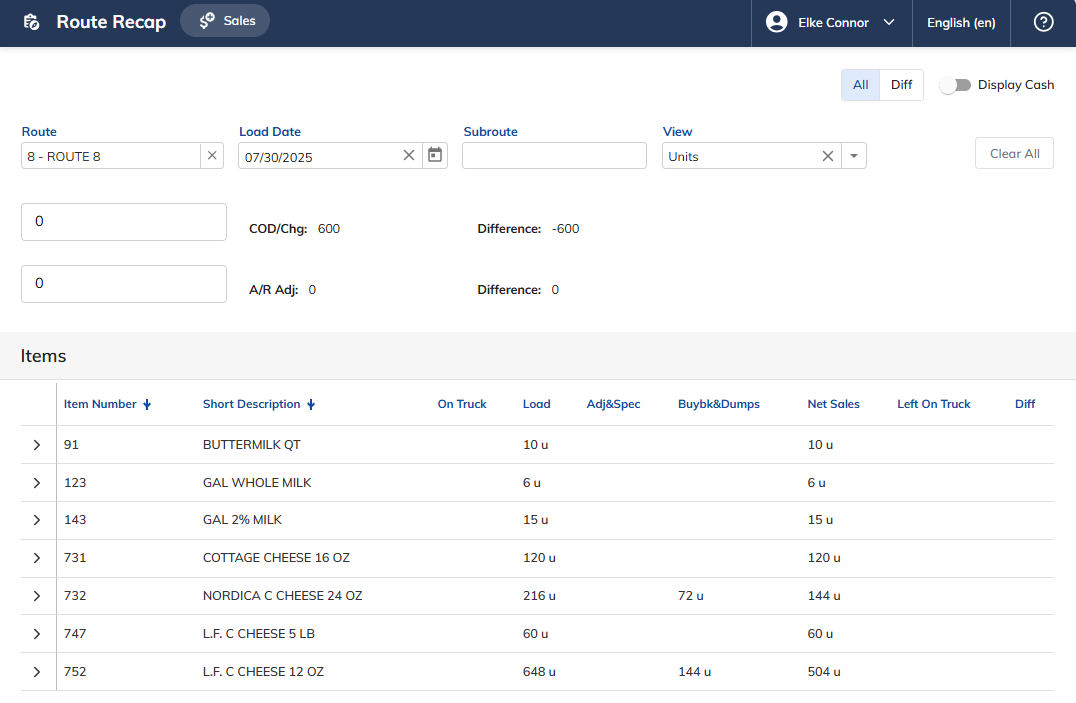
The Route Recap displays a summary of the route, including the item number, short description, on-truck quantity, adjustments, specials, buybacks, dumps, net sales, left on truck, and differences.
The All/Diff Button
Allows the user to change the view of the screen to show all items or only items with differences.
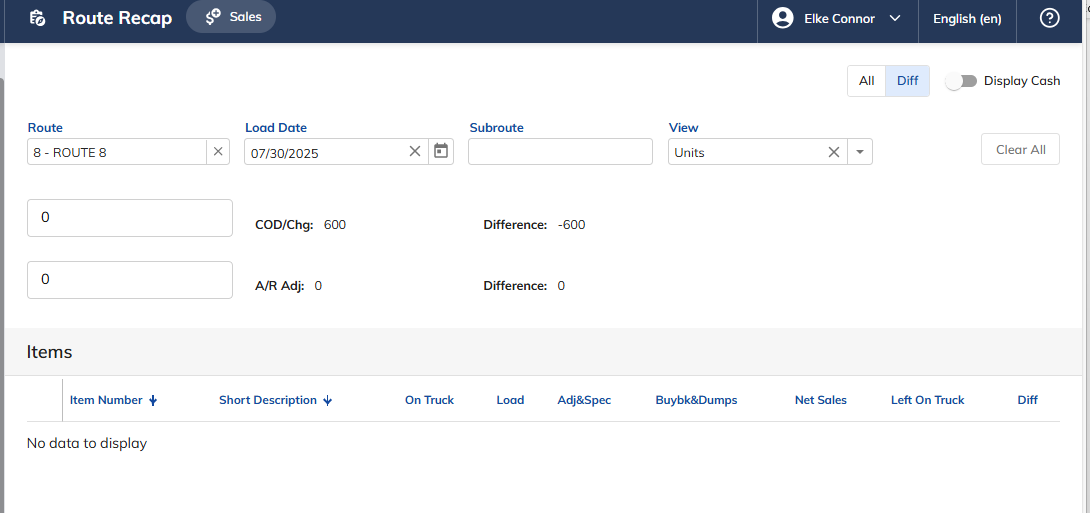
In the example above, the Difference button was selected and there are no differences that need to be settled.
Display Cash Button
Allows the user to review all cash posted to the route through sales entry for specific customers. The user can enter the physical cash in hand to compare to what was actually entered, giving the user a difference in the amount entered vs. collected.
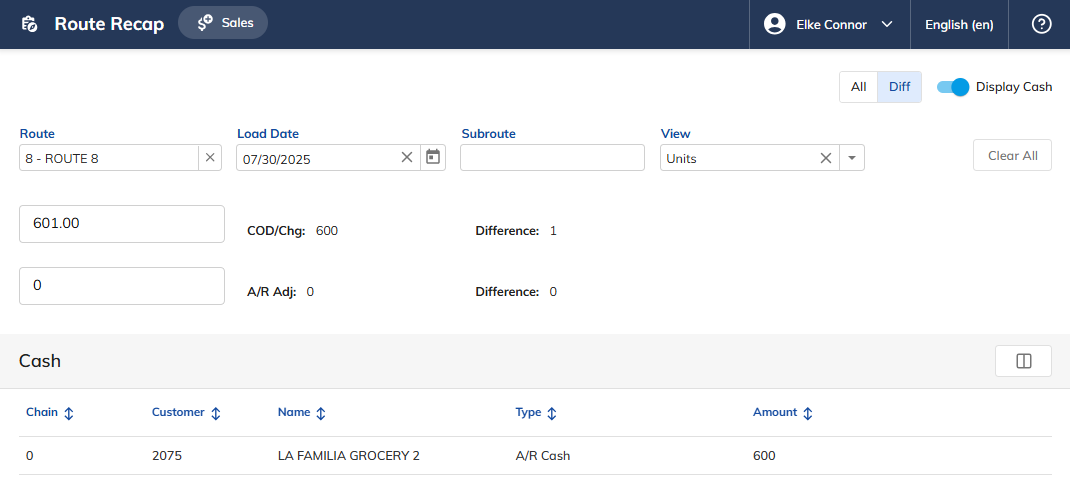
In the example above, $600.00 was entered, yet the physical money in hand was $601.00, showing a difference of $1.00.
Display Sales Button
Select the Sales button next to Route Recap.
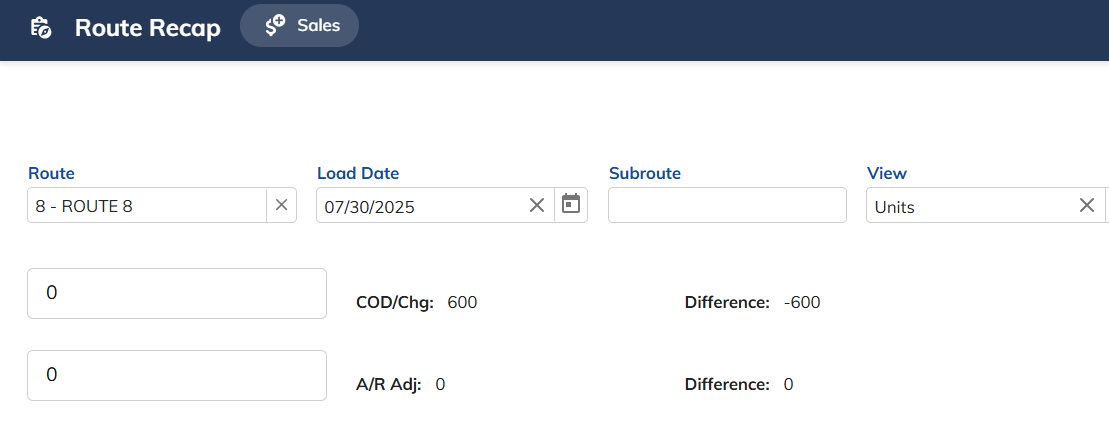
The following screen will display:
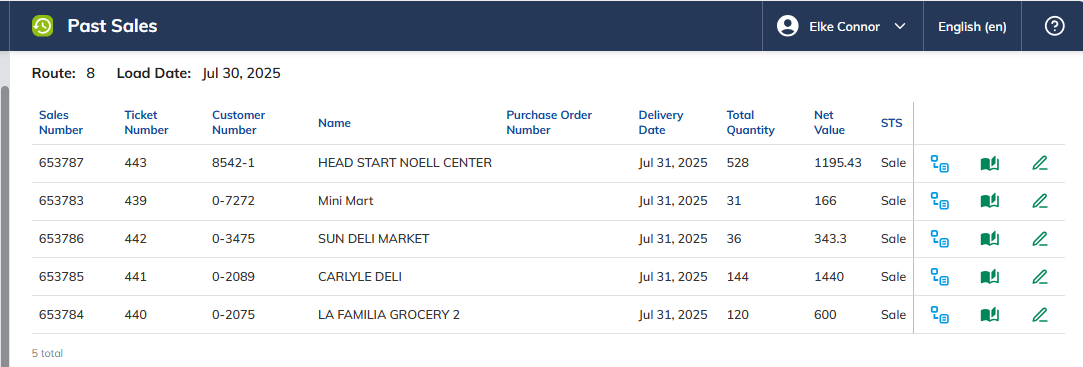
By clicking on the Details button, the sale item detail is available for each customer.

Selecting the Multiple detail type, the sale detail will be displayed, including dumps and returns:
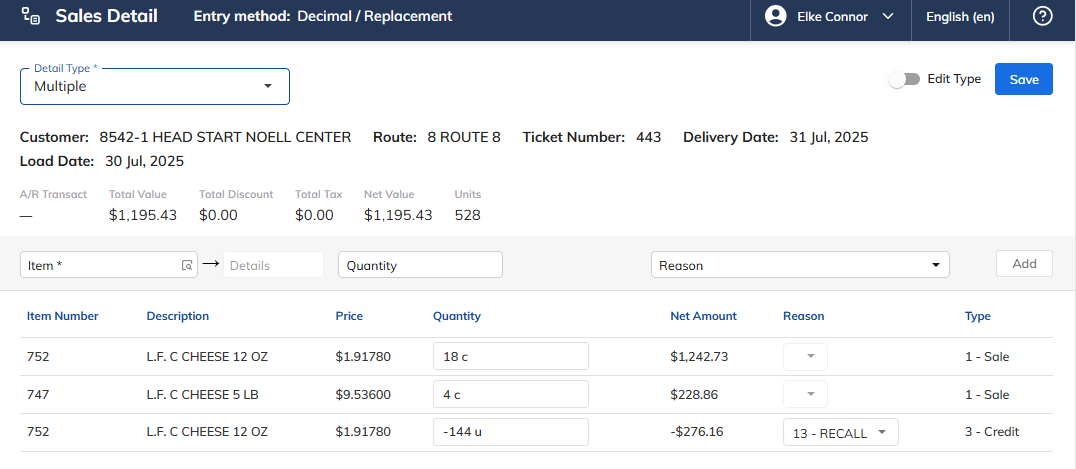
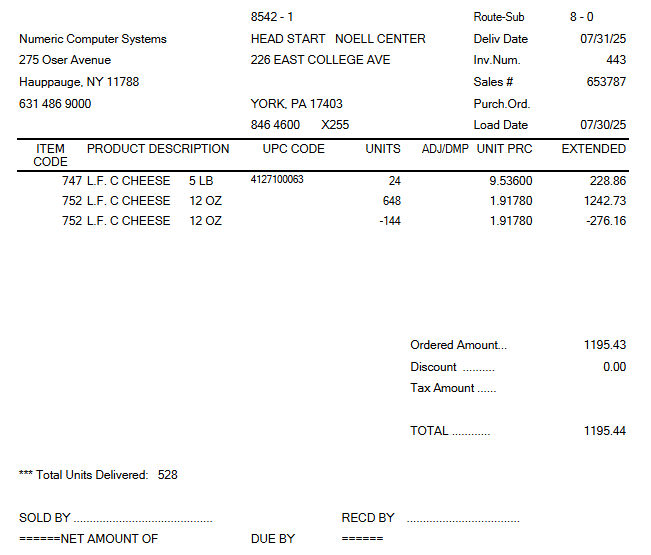
By clicking on the Print button, a copy of the Sales Delivery ticket will print.

Sales Delivery Ticket:
Editing Past Sales
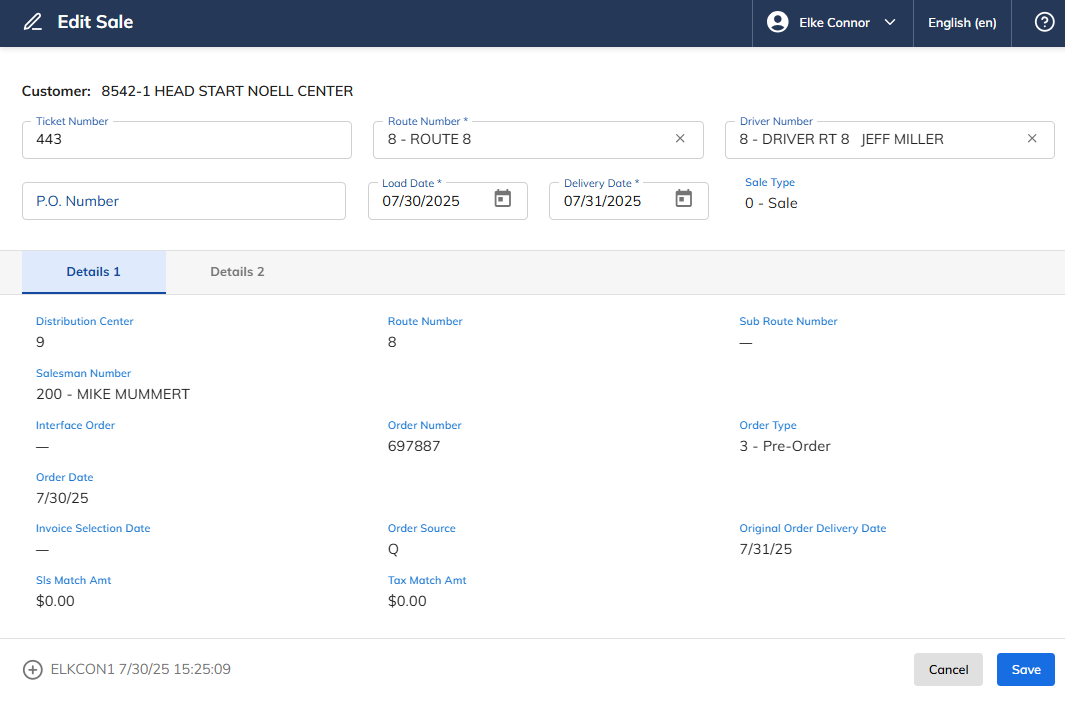
By clicking on the Edit button, the sales header information will appear, allowing the user to edit certain header records: