
Route Balancing
Route Balancing gives the user an overview of all orders for all Routes and Load Dates. It allows the user to move orders individually or in bulk from one Route Number to another, and to change the load and delivery date, balancing out the routes for delivery purposes.
Route Balancing – Bulk Change
Select the Route Balancing hyperlink under the DISTRIBUTION MENU.
Enter the Load Date to view Routes available for Route Balancing.
Once you enter the Load Date, click on the drop-down arrow to view ALL the orders for that particular load date and route number.
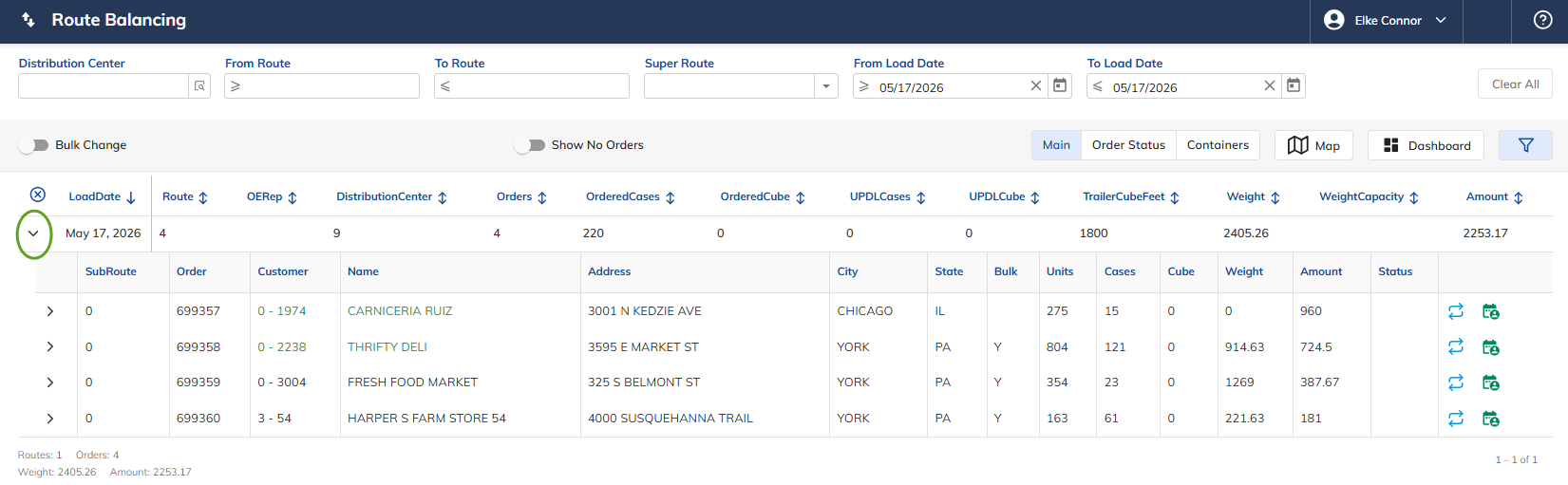
Select Bulk Change to move ALL the customers' orders on that route and load date to another Route Number and/or another load and/or delivery date as well.
Select Apply.
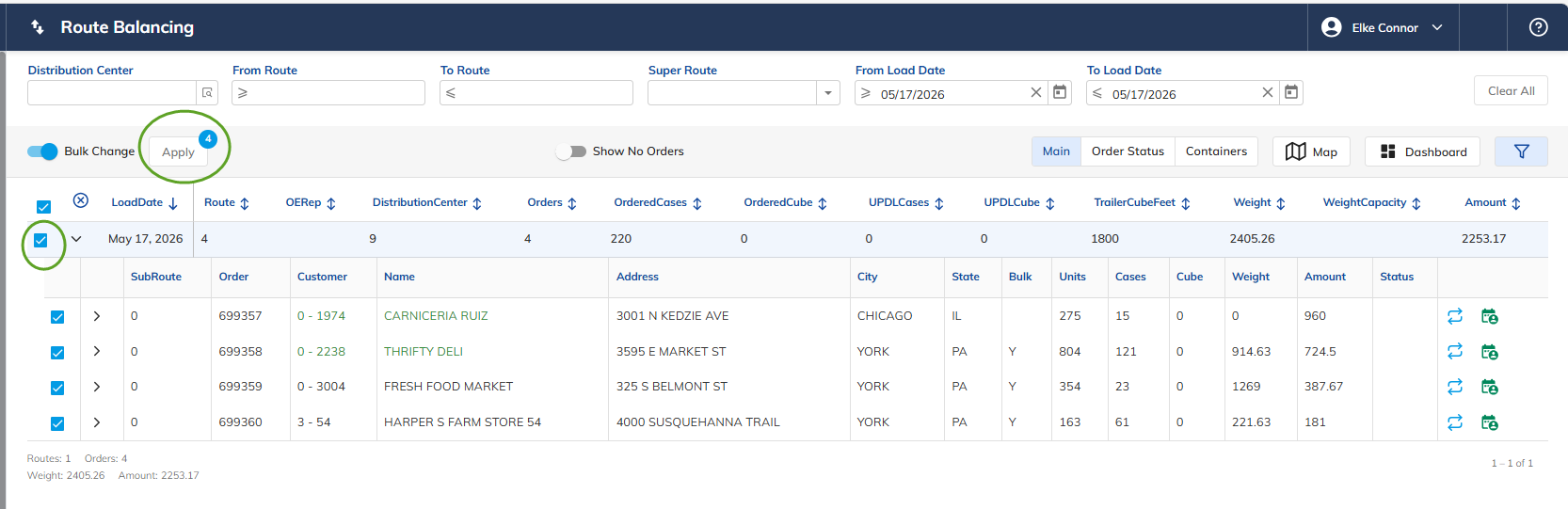
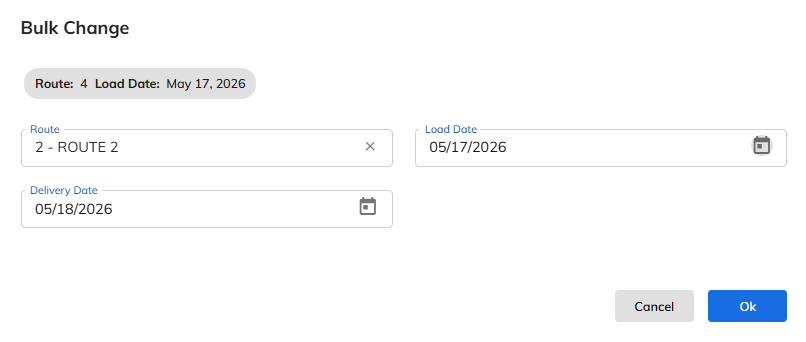
Once the user selects Apply, the following screen appears.
This allows the user to change the Route Number only, or the Load and/or Delivery Date as well.
Press OK to save the changes.
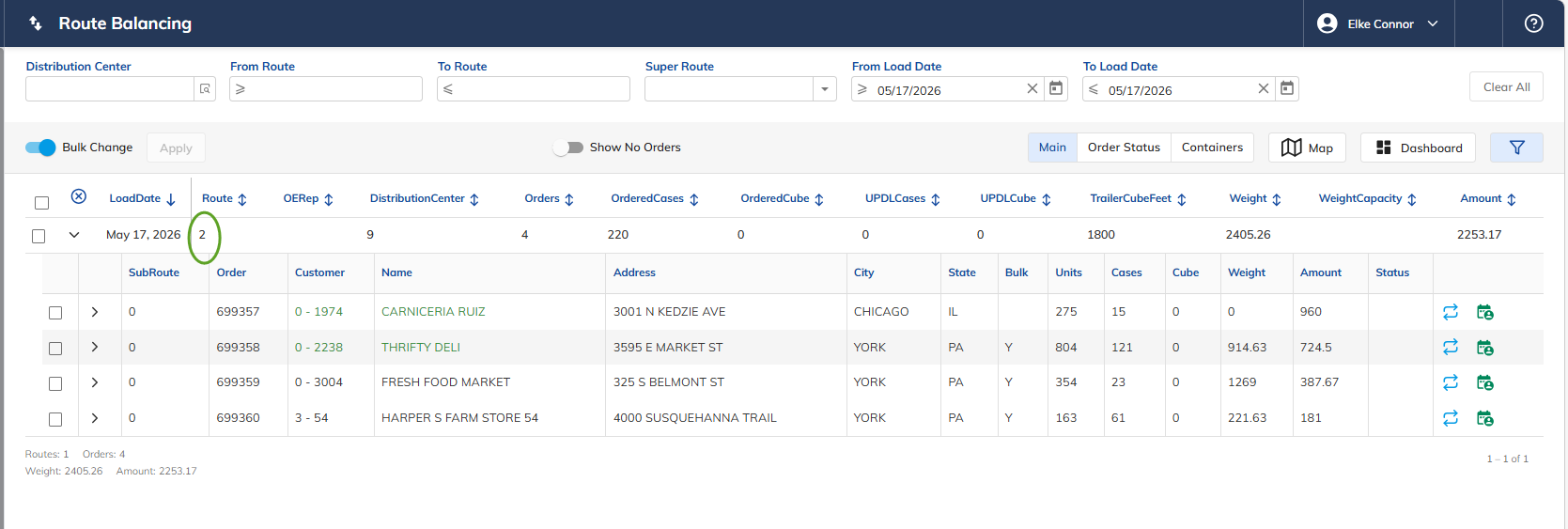
Once OK has been pressed, the orders on Route 4 were bulk changed to Route 2.
Route Balancing – Moving an Individual Order
Select the Route Balancing hyperlink under the DISTRIBUTION MENU.
Enter the Load Date to view Routes available for Route Balancing.
Once you enter the Load Date, click on the drop-down arrow to view orders for the load date and route number entered.
Select the individual change button to move the one order from one route to another.
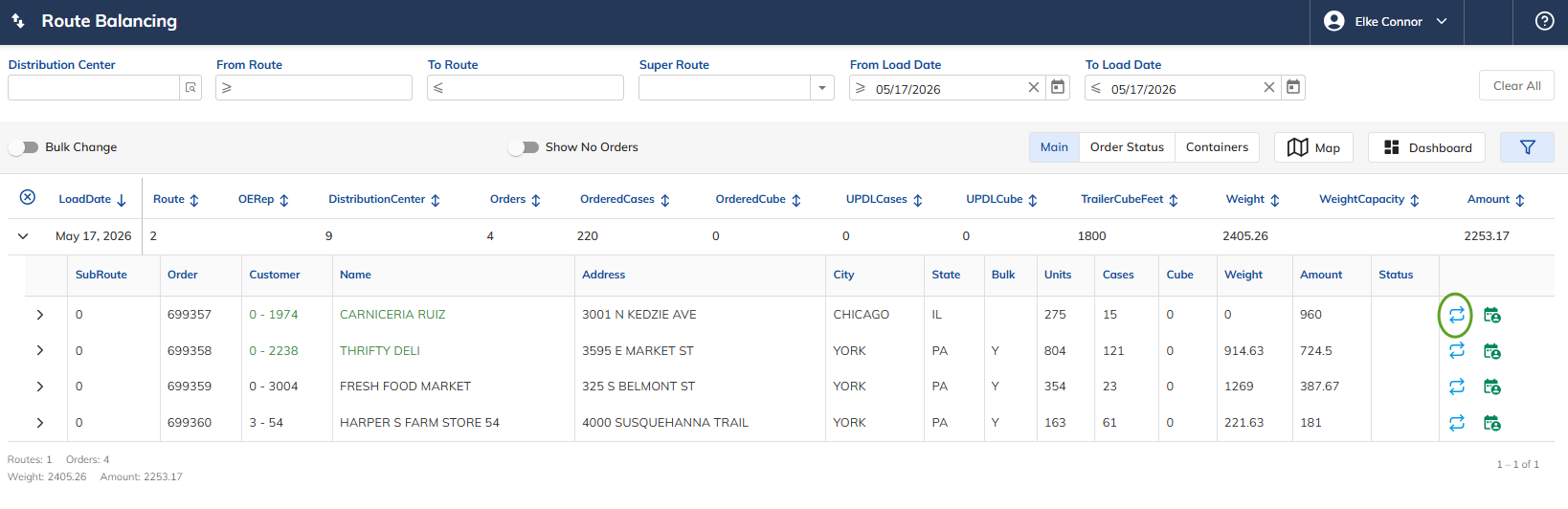
Select the individual change button to ONLY move the one customer order from one Route Number to another Route Number and/or another load and/or delivery date as well.
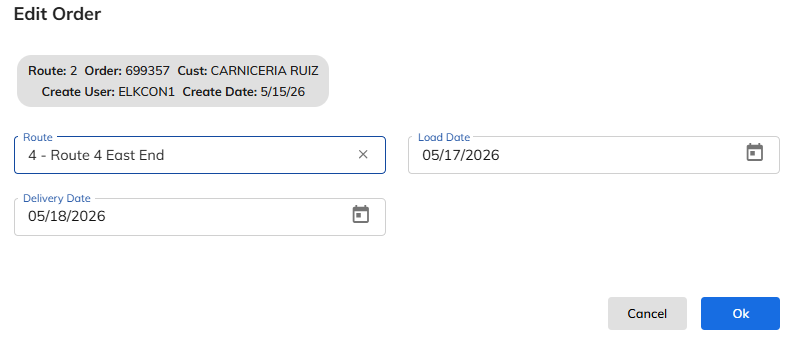
This allows the user to change the Route Number only, or the Load and/or Delivery Date as well.
Press OK to save the changes.
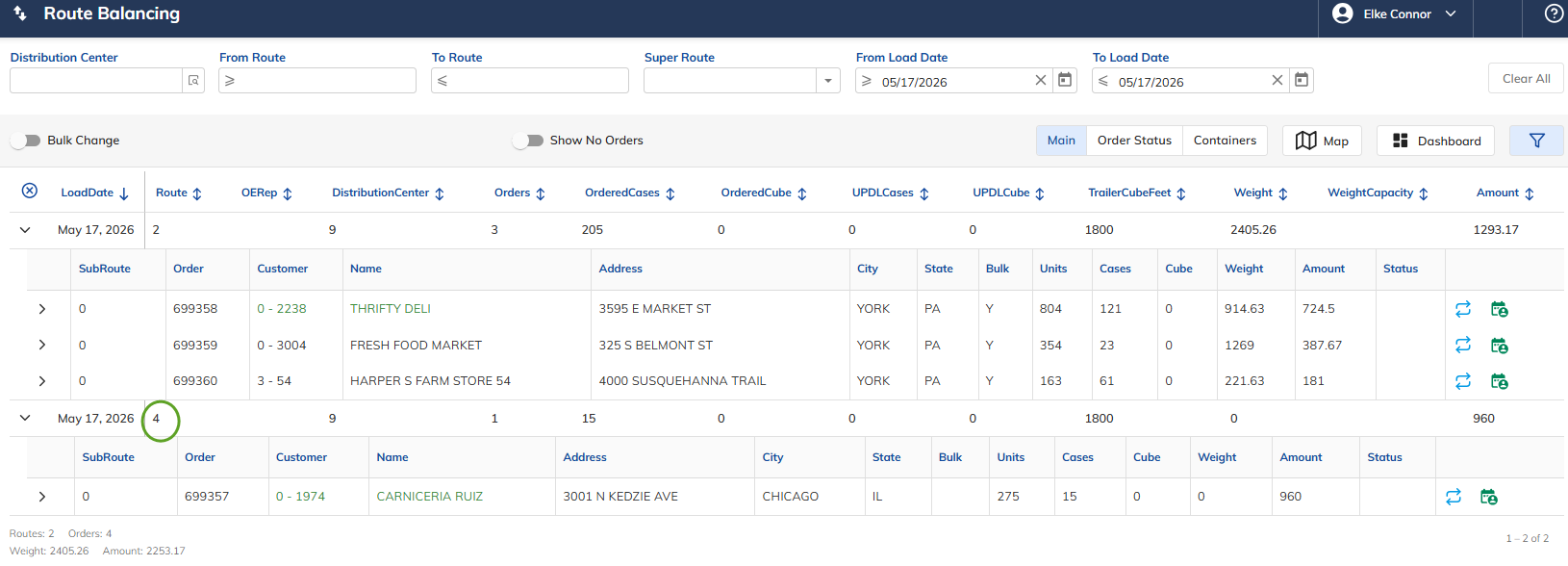
Once OK has been pressed, the order was moved from Route 2 to Route 4.
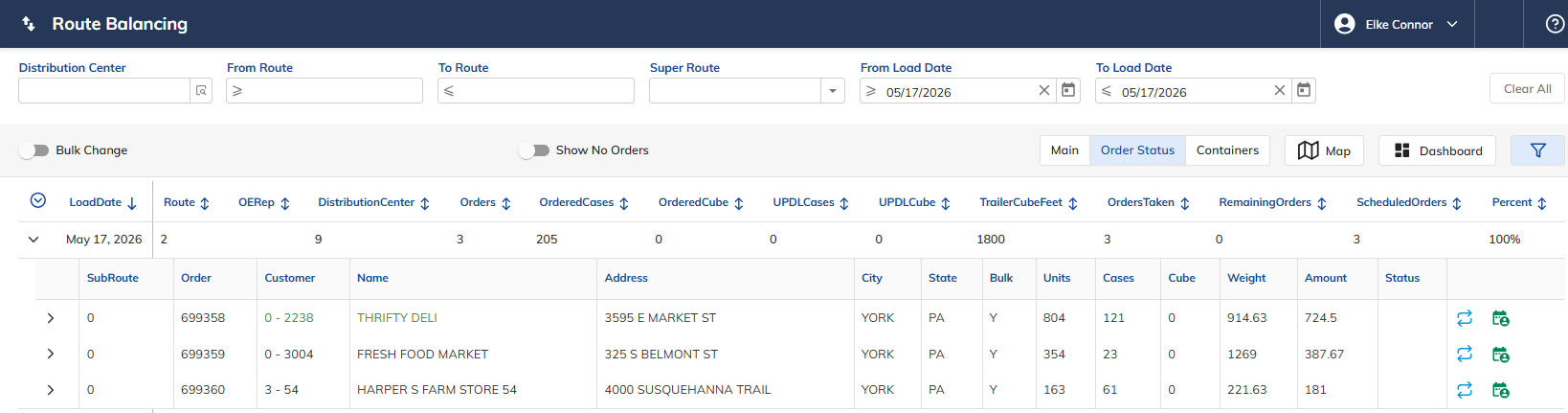
Fields Defined
Field | Mandatory? | Description |
|---|---|---|
Load Date | Yes | Displays the Load Date. |
Route Number | Yes | Displays the Route Number. |
OE Representative | No | Identifies the OE representative. |
Distribution Center | Yes | Displays the Distribution Center Number. |
Order Number | Yes | Identifies the Order Number. |
Ordered/Cases | Yes | Displays the Ordered/Cases. |
Ordered/Cube | No | Displays the Ordered/Cube. |
UPDL/Cases | Yes | Enter a Call Time for each Delivery Day and the time to be called for Call Queue. |
UPDL/Cube | Yes | Enter a Service Duration for each Delivery Day. |
Trailer Cube Feet | No | Displays the Trailer Cube Feet. |
Orders Taken | Yes | Identifies the amount of orders taken. |
Remaining Orders | Identifies the number of remaining orders on the route to be called. | |
Scheduled Orders | Identifies the number of scheduled orders. | |
Percent | Identifies the percentage of orders remaining. | |
Sub Route | Displays the Sub Route Number. | |
Order Number | Identifies the Order Number. | |
Customer | Displays the Chain and/or Customer Number. | |
Name | Displays the Customer Name. | |
Address | Displays the Customer Address. | |
City | Displays the Customer City. | |
State | Displays the Customer State. | |
Bulk | Indicates whether or not the order is Bulk (Y/N). | |
Units | Displays the Unit Total. | |
Cases | Displays the Case Total. | |
Cube | Displays the Cube Total. | |
Weight | Displays the Weight Total. | |
Amount | Displays the dollar Amount of the Order. | |
Status | Displays the Order Status. |