
Customer Weekly Route Version
Route Version Maintenance links a Route Number to a Route Version and specifies the start and end dates of the Route/Version. Because of the seasonality of many route businesses, customer groupings and delivery frequencies change between seasons and around public holidays, so Route Time Versions allow customers to move from one call-and-delivery pattern to another automatically based on effective dates. This article covers the Customer Weekly Route Version screen and how to move, delete, and add a Chain and/or Customer to a Route Version.
Customer Weekly Route Version
Select the Customer Weekly Route Version hyperlink under the ROUTE MENU.
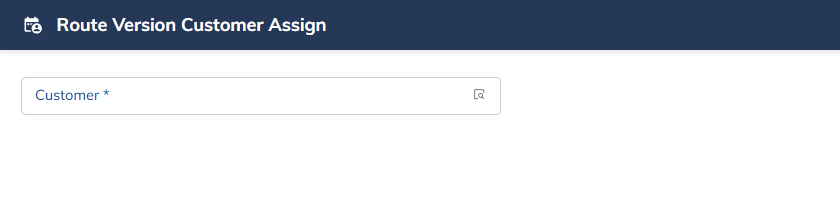
Once the hyperlink is pressed, the following screen appears.
Select the Customer Number.
Once the Chain and/or Customer number is entered, the following Customer Weekly Route Version screen displays the route and route version(s) for each delivery day.
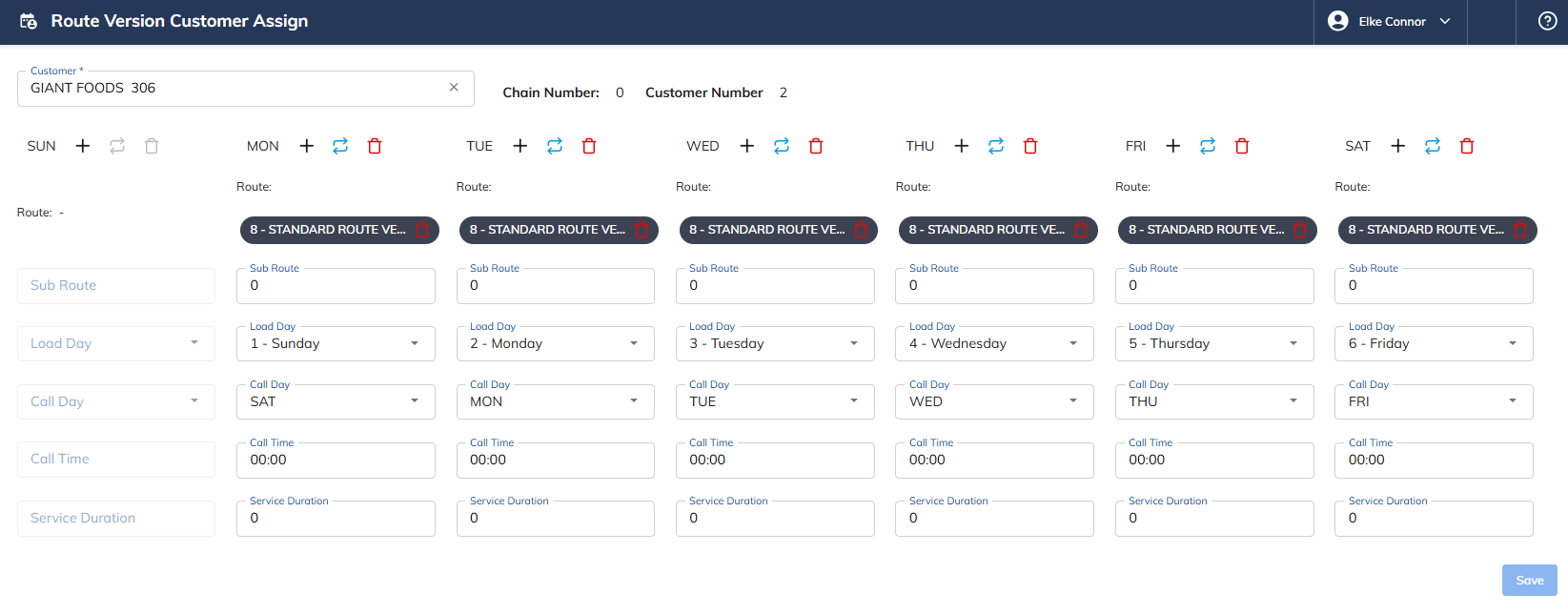
Field | Description |
|---|---|
Chain/Customer Number | Select the Chain or Customer Number. |
Route Number | Route Number is populated from the prior screen. |
Route Version | Route Version is populated from the prior screen. |
Effective Date | Effective Date is populated from the prior screen. |
End Date | End Date is populated from the prior screen. |
Order Entry Rep | Select the Order Entry Rep for this particular Route Version to be used with the Call Order Queue. |
Delivery Type | Select the Delivery Type, if different than the default delivery type. |
Start Date | Customer Start Date – enter the Chain or Customer Number start date. |
End Date | Customer End Date – enter the Chain or Customer Number end date. |
Moving a Chain and/or Customer from One Route Version to Another
Select the Move button to move the customer to another Route Version.
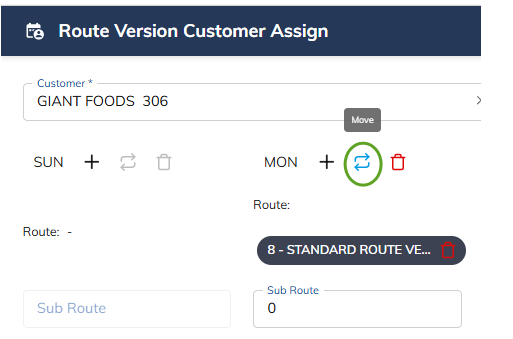
Once Move is selected, the following screen appears.
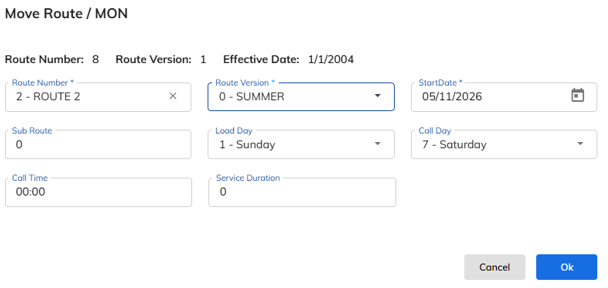
Select the Route Number the Chain and/or Customer is moving to.
Select the Route Version the Chain and/or Customer is moving to.
Press OK.
Once OK is pressed, the following screen will appear with the new Route Version.
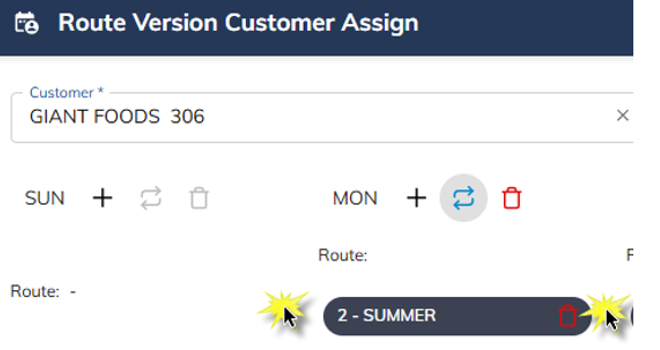
Once Save is pressed, the user will receive the message Route Version Assignment saved!!
Deleting a Chain and/or Customer from a Route Version
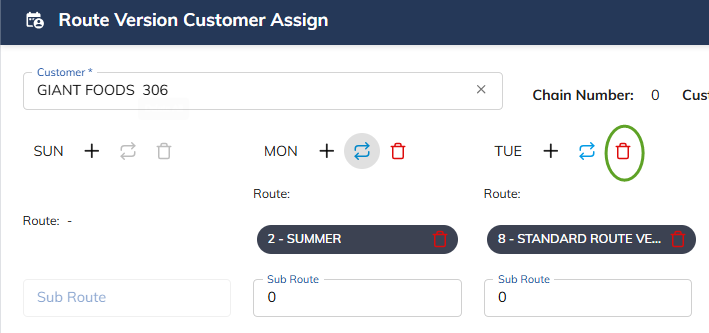
Select the Wastebasket to delete a Chain and/or Customer from a Route Version.
Once the Wastebasket is selected, the route version is deleted and the following screen will display.
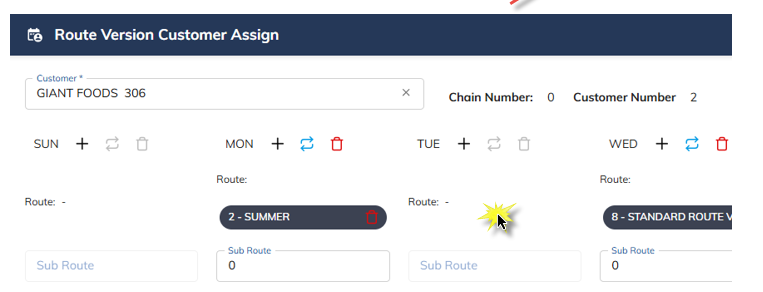
Once Save is pressed, the user will receive the message Route Version Assignment saved!!
Adding a Chain and/or Customer to a Route Version
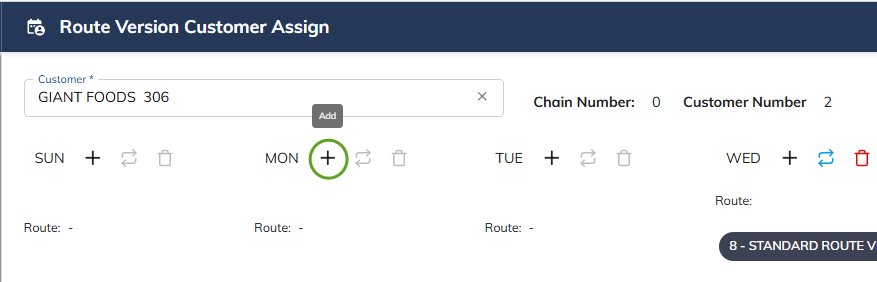
Select Add to add a Chain and/or Customer Number to a Route Version.
Once Add is selected, the following screen will appear.
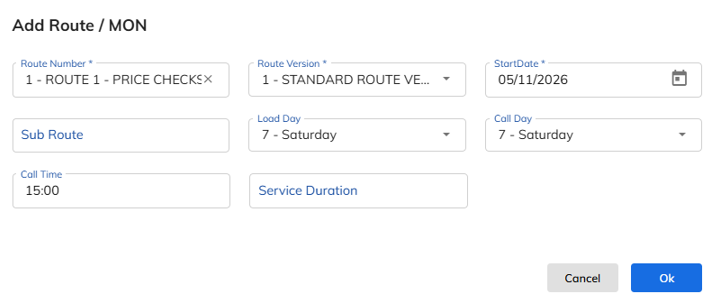
Select the Route Number to add the Chain and/or Customer Number to.
Select the Route Version to add the Chain and/or Customer Number to.
The Start Date defaults to today's date.
Select the Sub Route Number.
Select the Load Day.
Select the Call Day.
Enter the Call Time (military time — this is for the Call Queue).
Press OK to confirm the Chain and/or Customer's new Route Version.
Once OK is pressed, the following screen will display with the new Route Version.
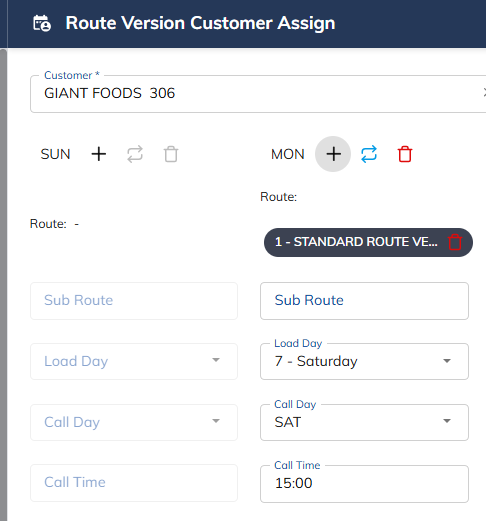
Once Save is pressed, the user will receive the message Route Version Assignment saved!!