
Route File Maintenance
This article shows how to use Route File Maintenance in xRMS. Chain and/or Customer Numbers are assigned to Routes, as are Drivers, Companies, and Distribution Centers. Routes are an important part of the Route Accounting system because they group customer deliveries together to streamline the delivery process. This article covers viewing, adding, editing, and deleting routes.
Important: Once a company is live with xRMS, a Route should never be deleted — it should ONLY be made Inactive.
Route File Maintenance (Main Screen)
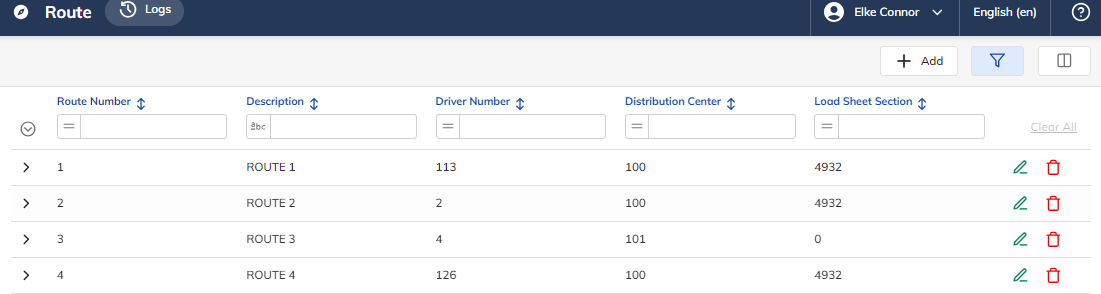
Field | Required/Optional | Recommended / Notes |
|---|---|---|
Route Number | Required | Identifies the delivery Route Number, up to 6 digits. |
Route Description | Required | Identifies the Route Description, up to 30 alphanumeric characters. |
Driver Number | Required | Identifies the Driver Number. The driver number is located in the Customer file, always Chain 99999, Customer 123. |
Distribution Center | Required | Identifies the Distribution Center. |
Load Sheet Section | Optional | Identifies the Load Sheet Section for the Route to print. |
Adding a Route to the Route File
Select the + Add icon. The following screen displays.
Populate all other fields you would like; upon completion, press Save.
Any fields highlighted in red are mandatory fields and need to be populated.
Route File – Route General Screen
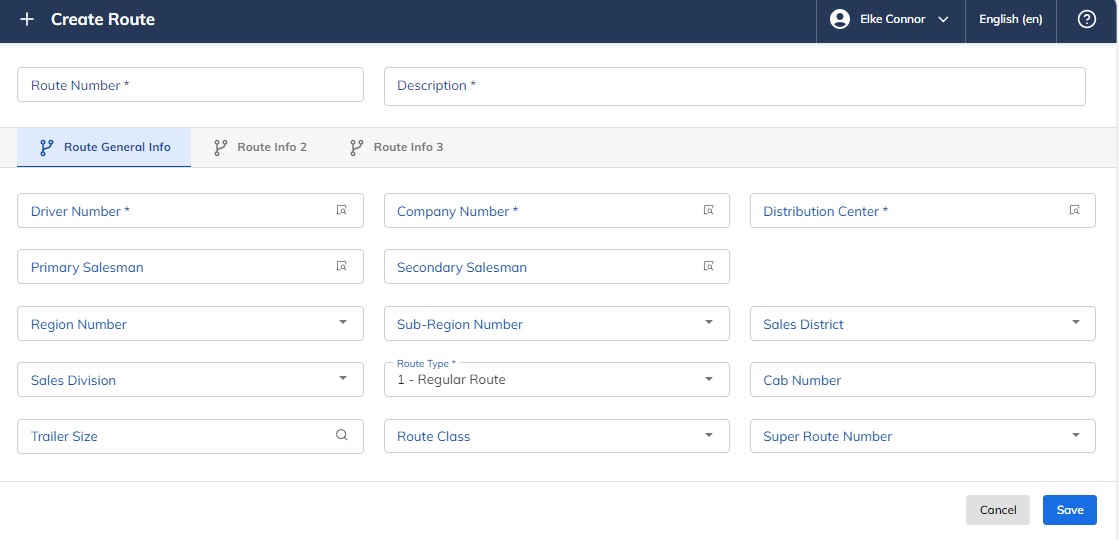
Field | Value | Recommended / Notes |
|---|---|---|
Route Number | Required | Identifies the delivery Route Number, up to 6 digits. |
Description | Required | Identifies the Route Description, up to 30 alphanumeric characters. |
Driver Number | Required | Identifies the Driver Number. The driver number is located in the Customer file, always Chain 99999, Customer 123. |
Company Number | Required | Identifies the Company Number. |
Distribution Center | Required | Identifies the Distribution Center Number. |
Primary Salesman | Optional | Identifies the Primary Salesman. |
Secondary Salesman | Optional | Identifies the Secondary Salesman. |
Region Number | Optional | Code used to group items together for reporting, item prompt inquiries, and mass price maintenance purposes. If used, valid Region Numbers (Code Type "RN") must exist in the codes file. |
Sub-Region Number | Optional | Code used to group items together for reporting, item prompt inquiries, and mass price maintenance purposes. If used, valid Sub-Regions (Code Type "SUBREG") must exist in the codes file. |
Sales District | Optional | Code used to group items together for reporting, item prompt inquiries, and mass price maintenance purposes. If used, valid Sales Districts (Code Type "SD") must exist in the codes file. |
Sales Division | Optional | Code used to group items together for reporting, item prompt inquiries, and mass price maintenance purposes. If used, valid Sales Divisions (Code Type "SV") must exist in the codes file. |
Route Type | Optional | Identifies the Route Type; choose one: Regular, Independent, Independent Charge do not credit, Super Route, or Thrift Store Route. |
Cab Number | Optional | Identifies the Cab Number. |
Trailer Size | Optional | Identifies the Trailer Size. |
Route Class | Optional | Identifies the Route Class. |
Super Route Number | Optional | Identifies the Super Route Number. |
Route Info 2
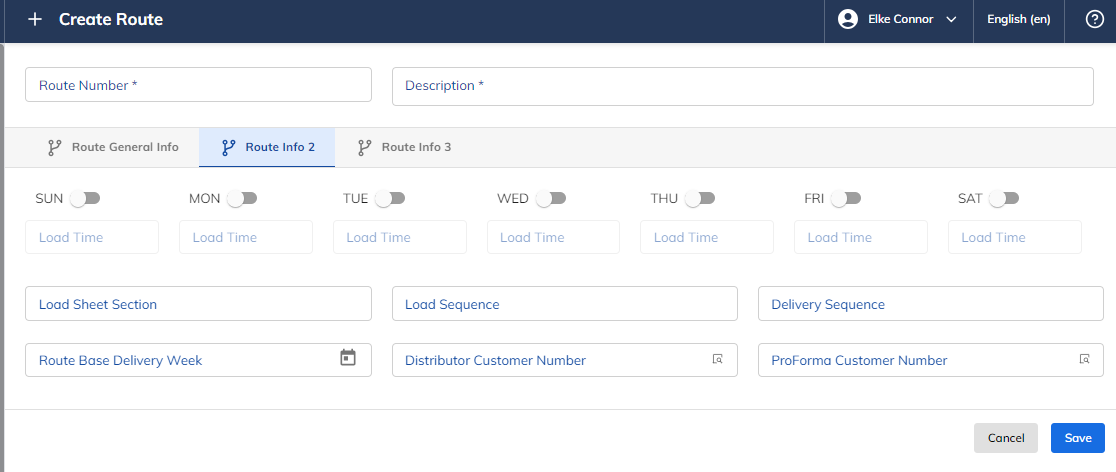
Field | Value | Recommended / Notes |
|---|---|---|
Delivery Days | Required | Identifies the Route Delivery Day – select Sunday through Saturday. |
Load Time | Optional | Identifies the Load Time of the route. |
Load Sheet Section | Optional | Identifies the Load Sheet Section the Route will print in when Load Sheets are printed. |
Delivery Sequence | Optional | Identifies the Delivery Sequence of the Route Number. |
Route Base Delivery Week | Required | Identifies Day 1 for the Route Delivery Week. |
Distributor Customer Number | Optional | Identifies the Distributor Chain and Customer Number. |
ProForma Customer Number | Optional | Identifies the ProForma Chain and Customer Number. |
Route Info 3
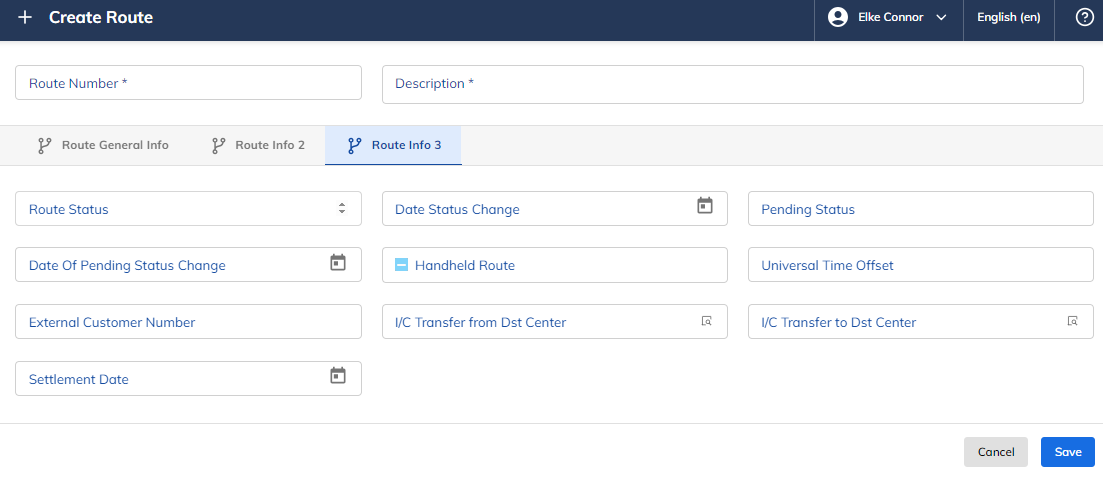
Field | Value | Recommended / Notes |
|---|---|---|
Route Status | Optional | Identifies the Route Status. |
Date Status Change | Optional | Identifies the Date Status Change. |
Pending Status | Optional | Identifies the Pending Status. |
Date of Pending Status Change | Optional | Identifies the Date of Pending Status Change. |
Handheld Route | Optional | Identifies if this is a handheld route (Yes or No). |
Universal Time Offset | Optional | Identifies the Universal Time Offset. |
External Customer Number | Optional | Identifies the External Customer Number. |
I/C Transfer from Dist Center | Optional | Identifies the I/C Transfer from Distribution Center. |
I/C Transfer to Dist Center | Optional | Identifies the I/C Transfer to Distribution Center. |
Settlement Date | Optional | Identifies the Settlement Date. |
Edit a Route
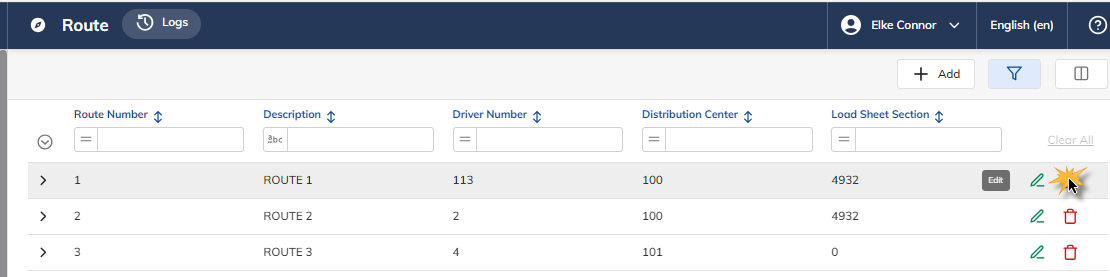
Select the Pencil icon for the Route you wish to edit.
Make the necessary changes.
Select the Save icon. A message confirming the changes to the route file is displayed.
Deleting a Route
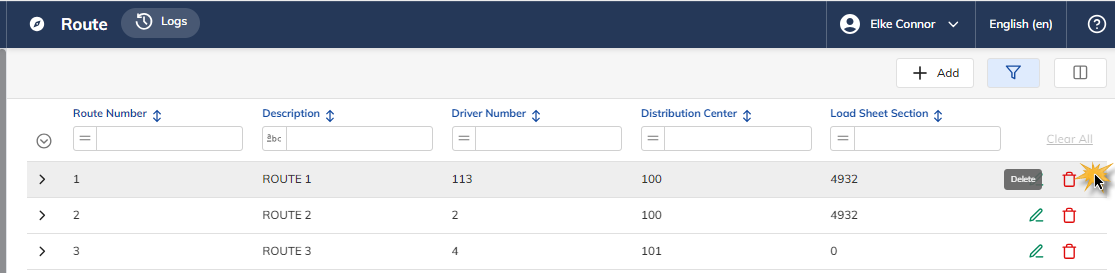
Select the Route you wish to delete.
Select the Delete icon.
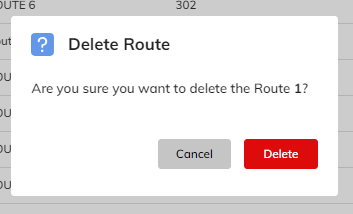
The question will appear "Delete Route"; select Cancel or Delete.